
 Community
 Video Library
 Agent Training
 Freshservice
 Freshdesk
 Freshchat
 Freshcaller
 Freshsales
 Freshteam
 Freshworks Neo
 Freshsurvey
Signup Date: After December 2025
Applicable Plans
| Freshdesk | Growth, Pro, Enterprise |
| Freshdesk Omni | Growth, Pro, Enterprise |
Business hours help you set clear expectations about when your team is available and ensure SLA deadlines are calculated based on actual working hours.
How are Business Hours applied to tickets
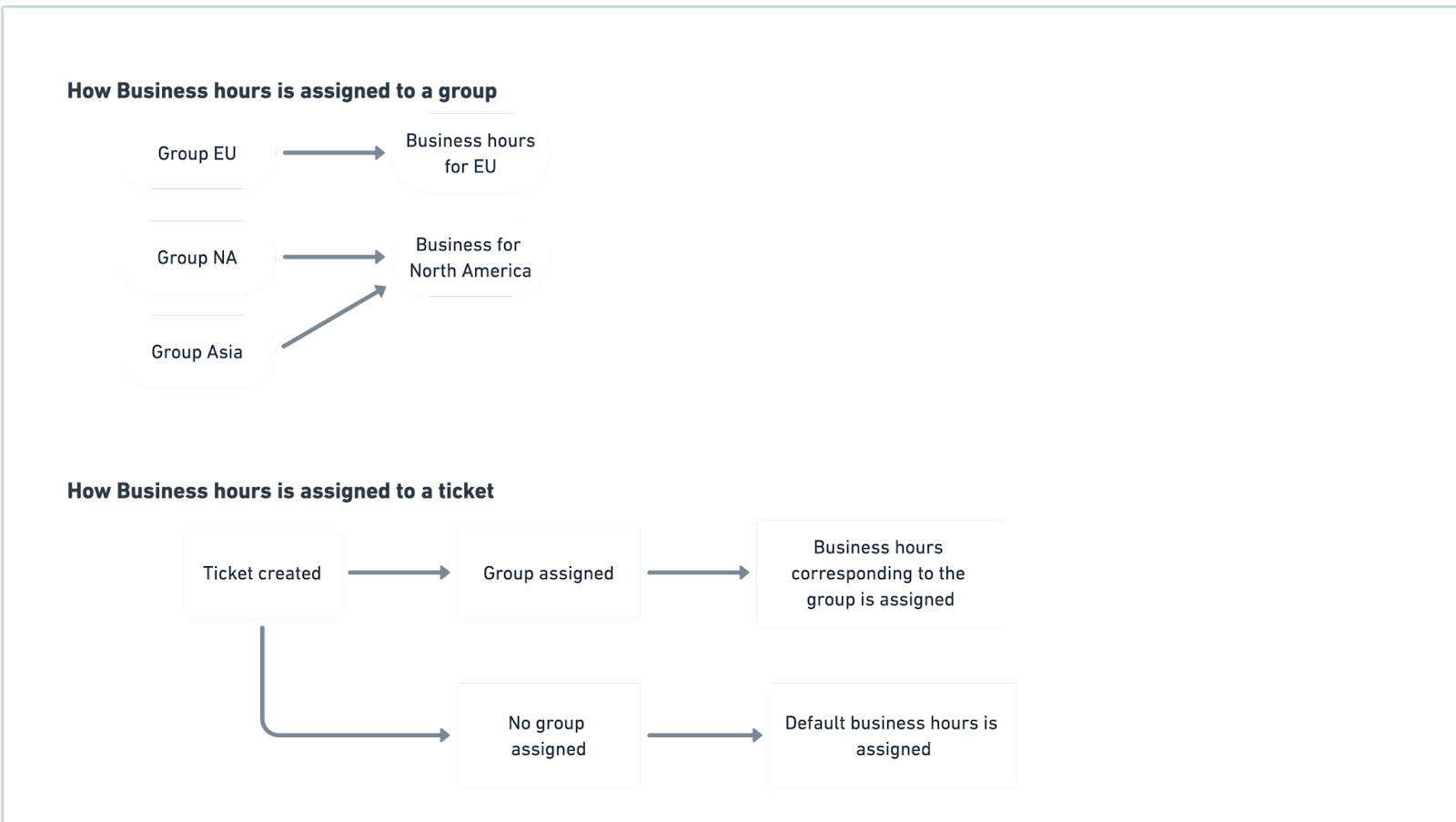
Business hours in Freshdesk cannot be applied to tickets unless they are first mapped to a group. Each group can be assigned its own business hours (for example, EU, North America, or Asia), ensuring that SLA calculations match the team’s actual working schedule. When a ticket is created, Freshdesk checks which group it belongs to. If the ticket is assigned to a group, it automatically inherits that group’s business hours. If no group is assigned, the ticket defaults to the business hours. This setup ensures accurate, region-specific SLA tracking without any manual effort.
Configure business hours
Default business hours in Freshdesk define the standard working schedule your support team follows, which is used to calculate SLAs and ticket response times. They come pre-configured for the account but can be edited to match your team’s actual working hours. You can also add additional business hours (Pro plan and above).
To add new business hours,
- Click Admin > Team > Business hours.
- On the Business Hours page, click Add business hours
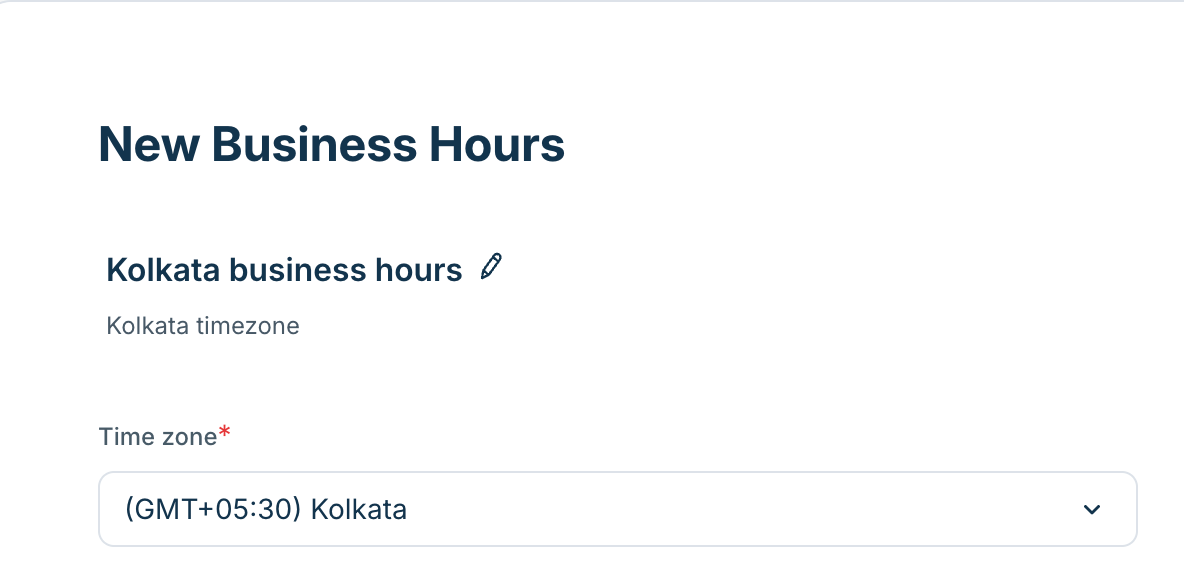
- On the New Business Hours page, provide a name for the business hours, add a description, and select the corresponding time zone.
Select channels or sources (Applicable to Freshdesk Omni only)
- In the Business hours tab, under Set business hours, click Add hours
- Select the sources for which you want to configure business hours. This is available only for Freshdesk Omni. In Freshdesk, a single set of business hours applies to all channels.
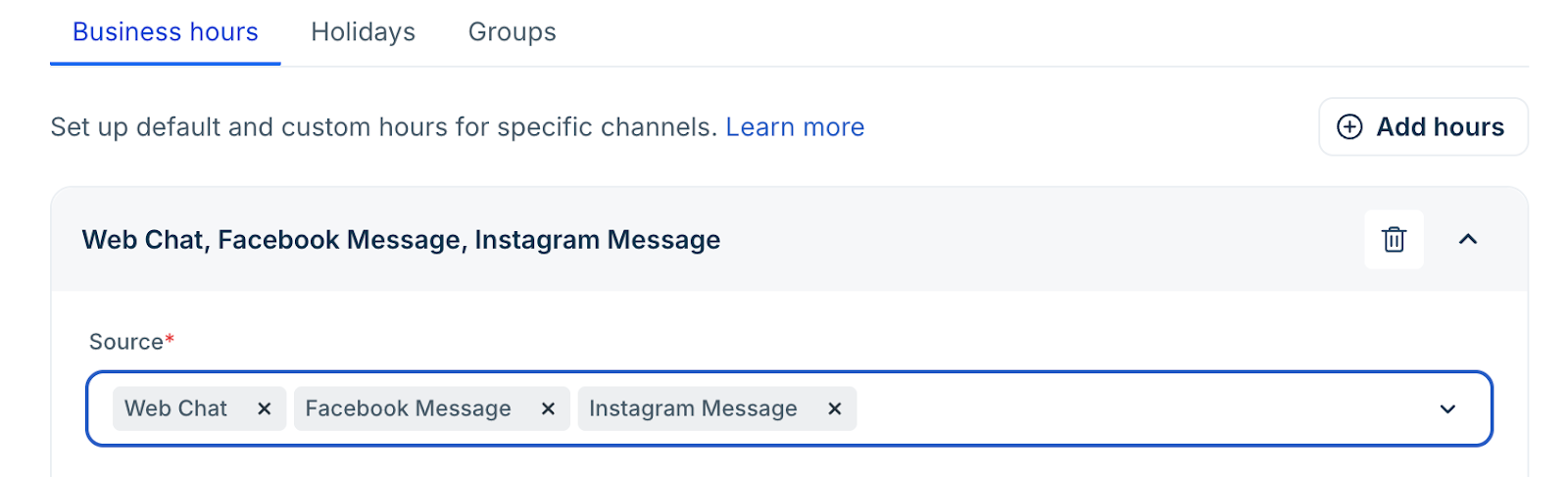
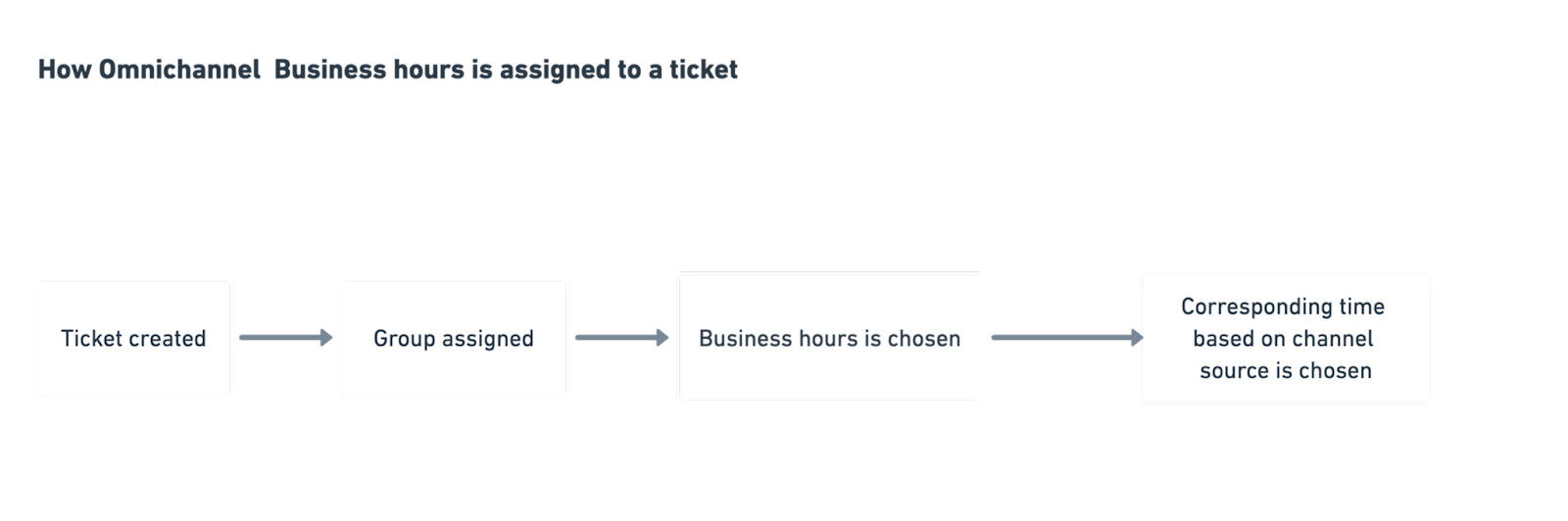
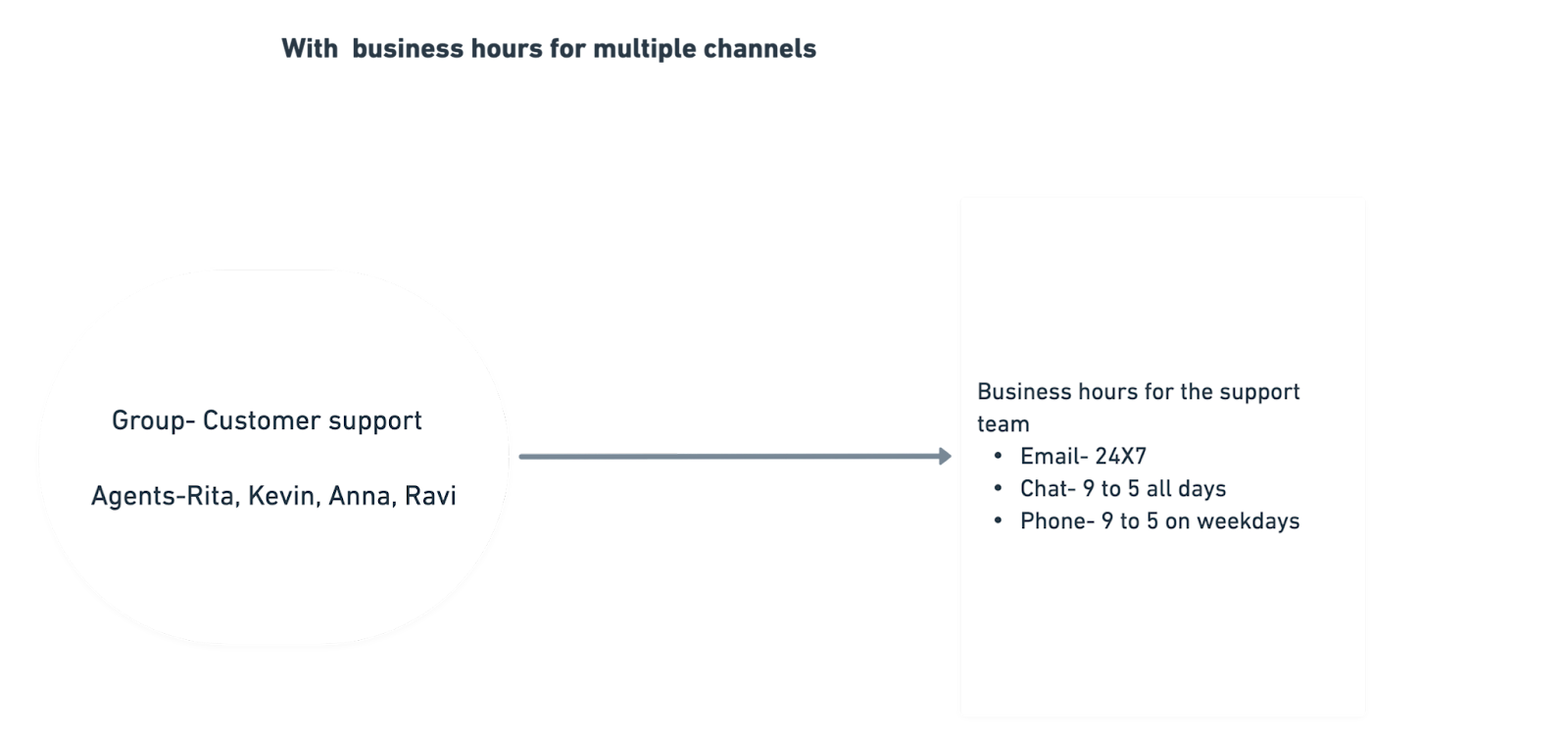
In Freshdesk Omni, channel-specific business hours help teams manage support expectations more accurately. Different channels (like Instagram, Email, WhatsApp, or Web Chat) often have different response patterns and staffing models. For example, chat conversations may require extended coverage while email works during standard hours. Channel-level hours ensure SLAs, automation, and customer expectations are aligned to how each channel actually operates.
Set business hours
- Under ‘Set business hours’, choose the working days, and enter their corresponding working hours.
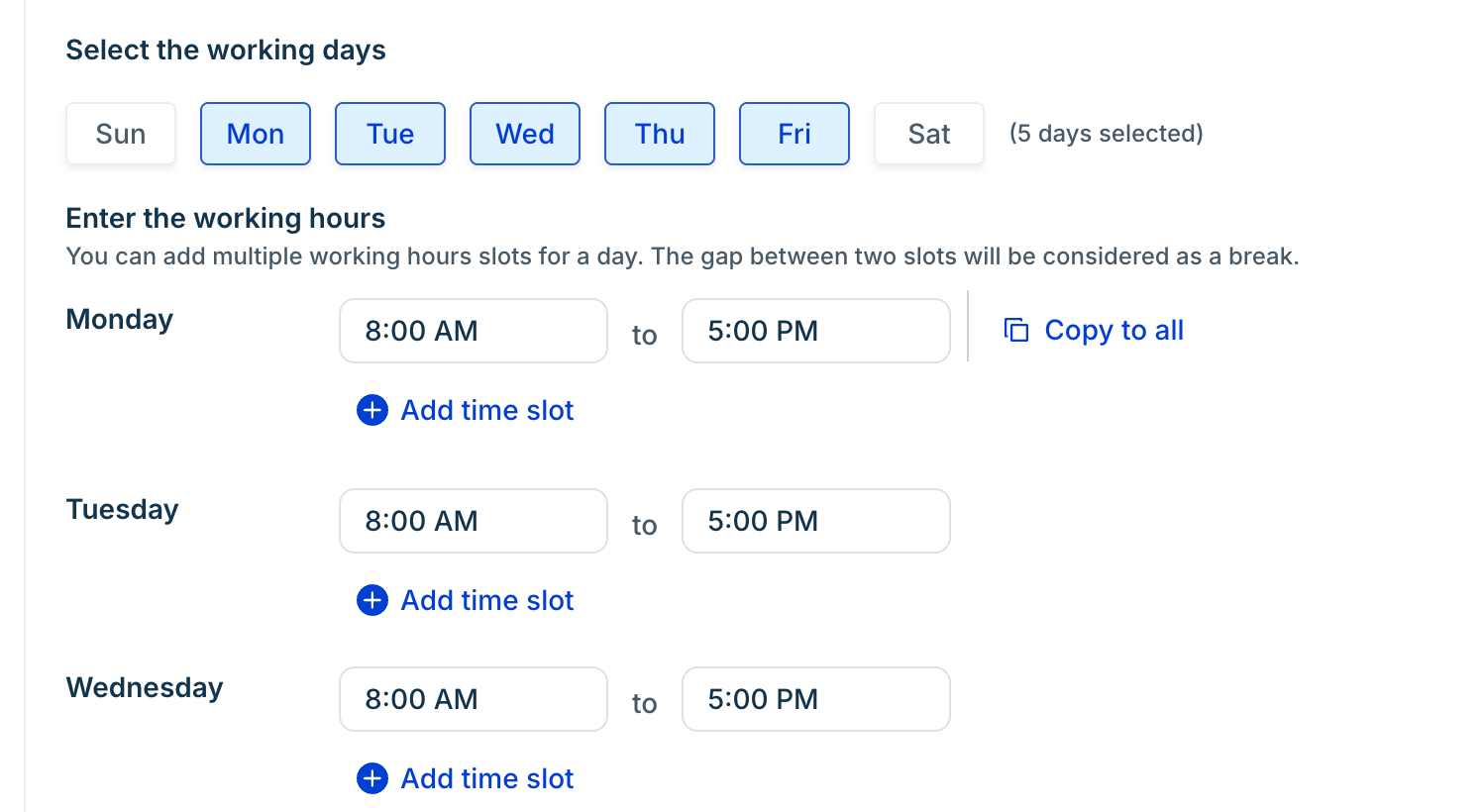
Note: If you support round-the-clock operations or handle urgent issues, you can choose the 24/7 option.
Customize hours or add breaks
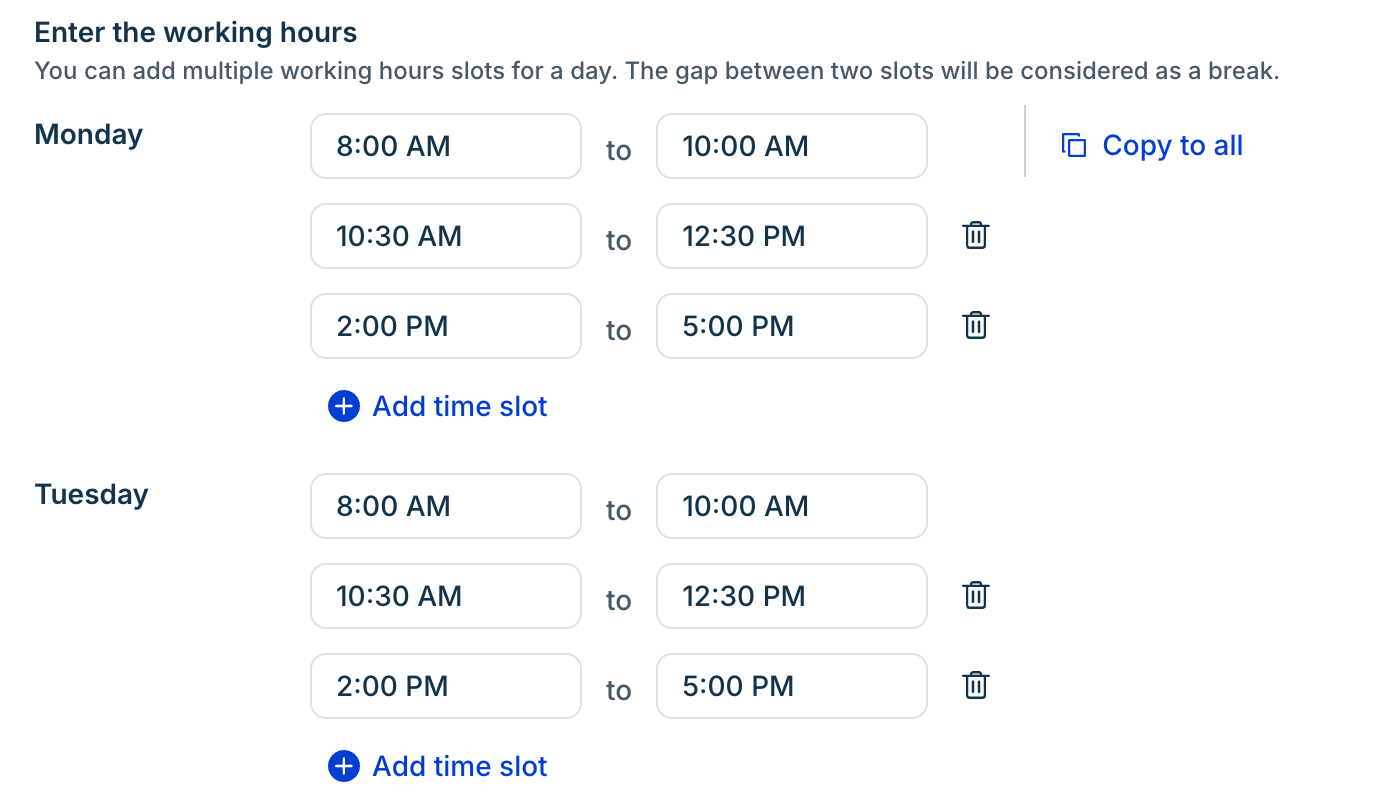
- You can also add multiple working slots for a day. The gap between two slots will be considered as a break. You can add up to 5 breaks for a day.
Add holidays
- In the Holidays tab, click Add Holiday
- In the Add Holiday pop-up, choose the type of Holiday you want to add from the tabs:
- Exclusive Holiday - Choose the month, date, and name of the holiday.
- Regional Holiday - Select the regional holiday from the dropdown list. Selecting regional holidays will override and remove any previously set exclusive holidays.
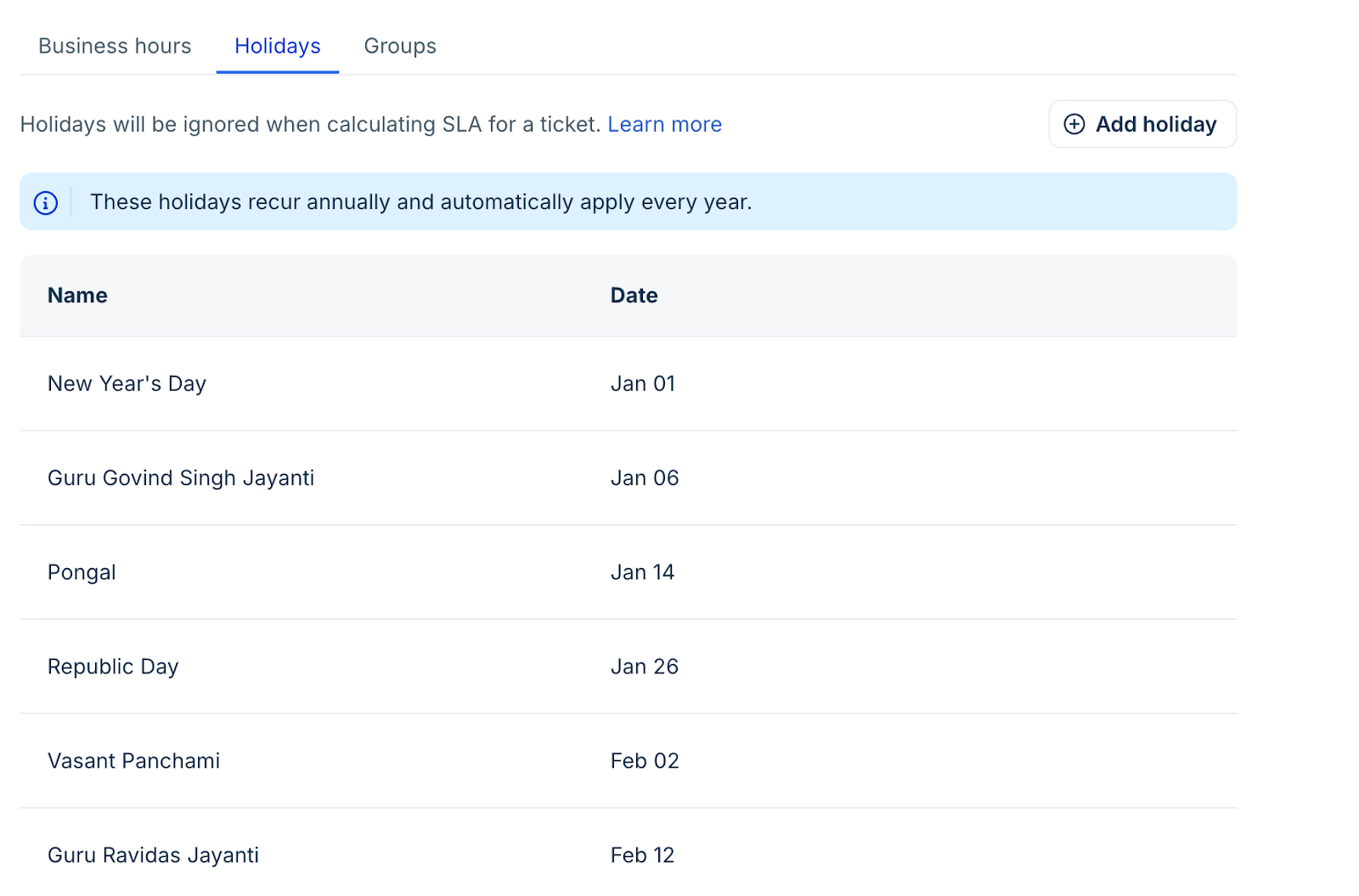
Note: Once added, all holidays are created as recurring annual holidays.
Assign business hours to groups
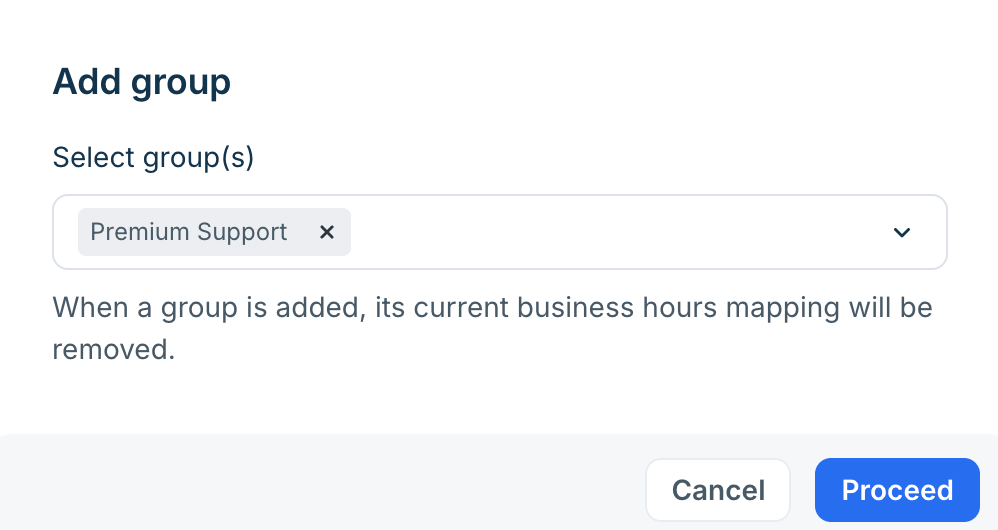
- Now that business hours have been defined, you must assign them to a group for them to take effect. Under the Groups tab, click Add group
- In the Add groups pop-up, you can select the group to which you want to assign the business hours.
When your team works out of multiple centers or follows different work hours, it is easier for you to lay down a separate set of business hours for each team. By dedicating separate business hours, SLAs can be executed properly based on the time or place of origin, and your team won't be incorrectly penalized.
Signup Date: Before December 2025
Applicable Plans
| Freshdesk | Growth, Pro, Enterprise |
| Freshdesk Omni (formerly CSS) | Growth, Pro, Enterprise |
| Omnichannel | Growth, Pro, Enterprise |
| Freshdesk (previous plans) | Blossom, Garden, Estate, Forest |
| Omnichannel (previous plans) | Estate, Forest |
Freshdesk offers two different ways to calculate your SLAs - Calendar hours- which includes your non-working hours, holidays, and Business hours- your official working hours only.
Understanding Business Hours
Business Hours refer to your company's working hours. When chosen, anything outside your working hours, including calls, will not be timed by Freshdesk. You can specify working hours for each day, allowing you to meet SLAs for multiple time zones within the same week if necessary.
To set your business hours,
- Go to Admin > Team > Business hours. To create a new business hour setting, click on New Business Hours; or click Edit to modify previously-created business hours.

Understanding Calendar Hours
Calendar hours are regular full-day round-the-clock hours. If you're promising your customers 24/7 support, you need to use calendar hours as the basis of your SLA policies. Calendar Hours are more suited to high-priority and urgent priority tickets, which require immediate attention from your team even if it's a weekend or a holiday.
For example, if a ticket is due in six hours on a Friday evening, you'll have no problem waiting till Monday morning to resolve it if your SLA is per business hours. However, if it's in calendar hours, you'll want to resolve it immediately to ensure a spotless SLA report.