
 Community
 Video Library
 Agent Training
 Freshservice
 Freshdesk
 Freshchat
 Freshcaller
 Freshsales
 Freshteam
 Freshworks Neo
 Freshsurvey
 Growth
 Enterprise
Quick Automations is a dedicated automation module built for real-time channels in Freshdesk Omni. Unlike regular Freshdesk automations, Quick Automations is designed to execute actions within 30 seconds, ensuring that customers never wait too long for a response and agents aren’t overloaded with inactive conversations.
TABLE OF CONTENTS
- Quick Automations: Key Details
- Configuring Quick Automations
- A. Keep Customers Informed of Delays
- B. Reassign to an Available Agent
- C. Reroute to a Fallback Group
- D. Follow Up With Inactive Customers
- E. Reduce Load When Customers Don’t Respond
- F. Keep track of resolution delays
- Limitations
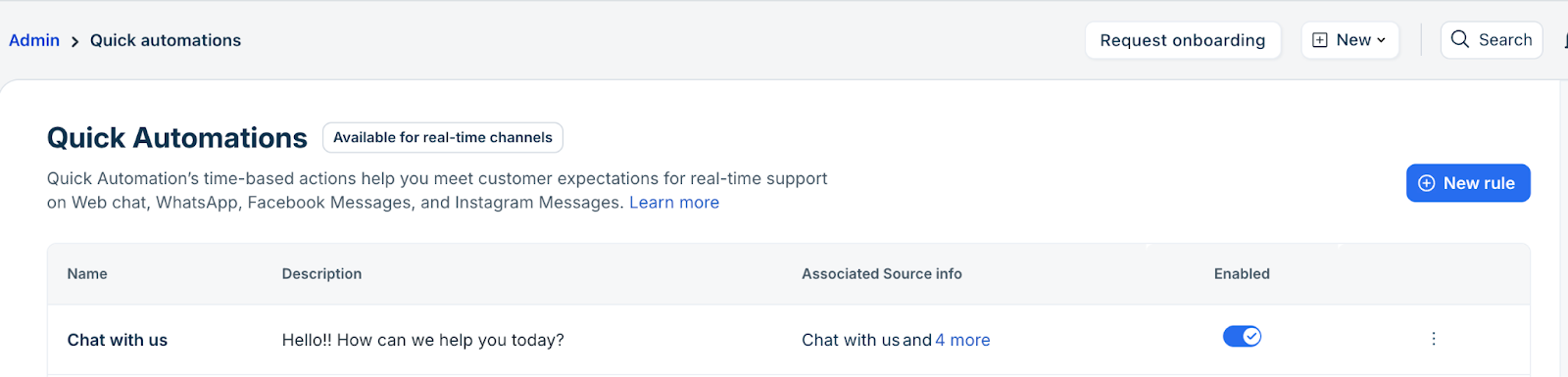
Quick Automations is a separate module under Admin > Workflows, supporting a set of fast, real-time channels. Freshdesk Omni supports Webchat, WhatsApp, Facebook, and Instagram direct messages.
Near-real-time actions are crucial for effective real-time channel use cases. Quick Automations help you to:
- Alert customers with a notification if an agent fails to respond within a predefined time (X seconds)
- Reassign chats when agents become overloaded
- Reroute chats when agent groups reach their capacity limit
- Follow up with customers who have become inactive
- Change ticket status if the customer is inactive, so the agent is assigned new tickets
Quick Automations: Key Details
- Trigger Execution: Actions run almost instantly, within one second of the configured time.
- Rules per Action: You can add up to 30 rules per Action.
- Configurable Delays: Automation delays can be configured to last from a minimum of 30 seconds up to a maximum of 59 minutes. Any delays longer than this must be handled using standard automation.
- Activity-Based Actions: Actions can be executed or canceled depending on the activity of the agent or customer.
- Placeholder Usage: Placeholders can be used when crafting replies.
- One Trigger Set per Source Info: Admins cannot create two different trigger setups for the same Source Info to avoid conflicting rules.
- State Changes Can Affect Results: If the ticket’s state changes before the trigger fires (for example, the ticket gets assigned/unassigned), the trigger may be cancelled or behave differently based on the new state.
- Quick Automations vs. Standard Automations: While standard Automations can be used for rules triggered by ticket creation, updates, and even hourly checks for real-time channels, they are generally not ideal for time-sensitive, real-time scenarios because follow-up actions only run every hour. Quick Automations are specifically designed to address time-based use cases within real-time channels. For other requirements, such as handling escalations, ticket classification, routing, and similar use cases, you should utilize standard Automations. Learn more about Automations.
Note: Quick Automations are only applicable to tickets where the source info (field value) is from Web Chat, SDKs, WhatsApp, Facebook direct message, or Instagram Direct Messages. They operate independently from the existing Automations module.
Configuring Quick Automations
Quick Automations includes five predefined templates. Each template supports delayed actions in seconds and includes automatic cancellation logic based on real-time events.
To access Quick Automations and configure the templates available,
- Go to Admin > Workflows > Quick Automations
- On the Quick Automations page, you will see a default automation configured
- Click New rule to add a new quick automation.
- In the Create new rule pop-up:
- Give your automation rule a name
- In the sources drop-down, choose the source followed by the source info (you can choose all source info values if you want the quick automation to apply for any ticket from the source)
- Fill in the description for easy reference later
- In the rule configuration page, you have 5 templates for configuration.
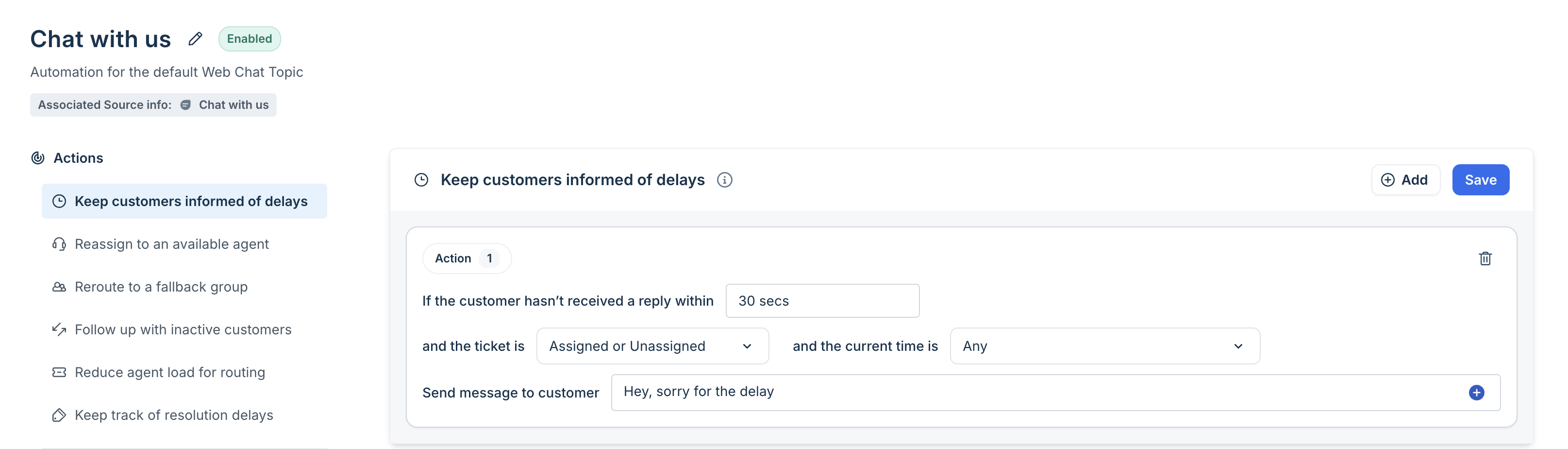
Let’s look at the rule templates in detail:
A. Keep Customers Informed of Delays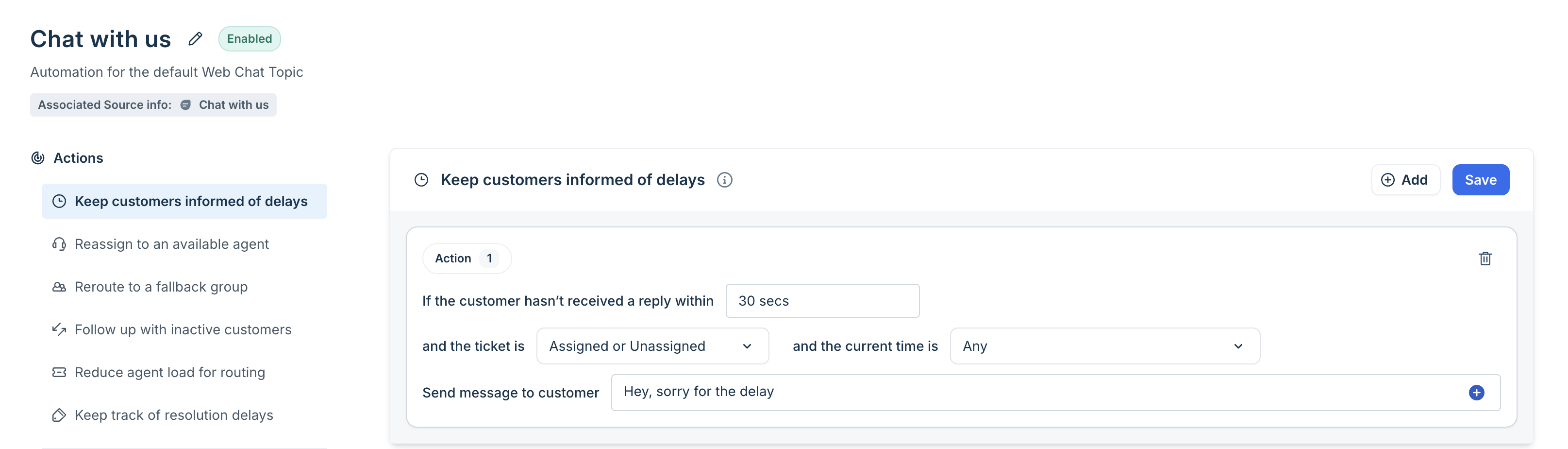
This template notifies customers if they’ve been waiting for a response from your team beyond the time you set (e.g., 30 minutes). The conditions use AND logic, so both conditions or events must be satisfied for an action to be triggered. For example, if a ticket is created at 9:00 AM and is assigned at 9:15 AM, and you’ve set a 30-minute wait time, the notification will be sent at 9:45 AM, provided the agent hasn’t replied yet.
Configuration:
Input: “If the customer hasn’t received a reply within ___”
What you do: Enter the number of seconds after which an automatic message should be sent if the customer is still waiting without a reply from the agent.
Input: “and the ticket is” (Assigned / Unassigned / Assigned or Unassigned)
What you do: Choose the assignment state the rule should apply to.
Example: If you choose Assigned, the rule only runs when the ticket already has an agent assigned.
Input: “and the current time is” (Any / Within business hours/Outside business hours)
What you do: Decide whether this rule applies all the time or only during business hours.
Input: “Send message to customer.”
What you do: Enter the precise message the customer should receive following the delay. You can also use the + button to insert placeholders for fields that will dynamically display their current values.
Note: Click +Add to add multiple rules (up to 30) or follow-ups. Each one can send a different message based on the delay or ticket.
B. Reassign to an Available Agent
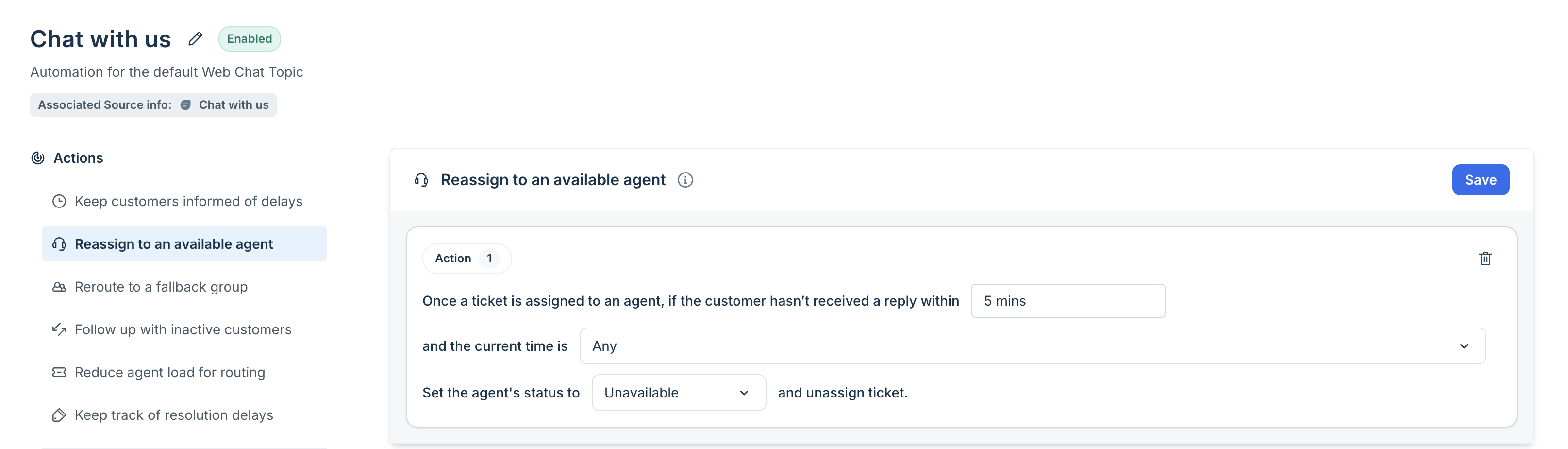
This rule is designed for situations where an assigned agent is unable to respond in a timely manner. The rule unassigns tickets that have been left unanswered by the assigned agent for a specified duration (e.g., 5 minutes).
- Scenario 1: Ticket assigned after the customer message.
If a customer messages at 9:00 AM, the ticket is assigned at 9:04 AM, and the threshold is 5 minutes, the ticket will be unassigned at 9:09 AM (5 minutes after assignment). - Scenario 2: Ticket assigned at the time the customer message is received.
If the ticket is already assigned at 9:00 AM and the threshold is 5 minutes, it will be unassigned at 9:05 AM.
Configuration:
Input: “Once a ticket is assigned to an agent, if the customer hasn’t received a reply within ___”
What you do: Set the threshold (in minutes or seconds) after which Freshdesk Omni should step in if the assigned agent hasn’t responded.
Input: “and the current time is” (Any / Within business hours/Outside business hours)
What you do: Choose whether the rule should work anytime or only during business hours.
Input: “Set the agent’s status to” (Unavailable/All channels/Email/Messaging/Idle)
What you do: Select the status the agent should automatically be switched to if they haven’t replied on time
Input: “and unassign ticket.”
What this means: The ticket will be reassigned to another available agent.
C. Reroute to a Fallback Group
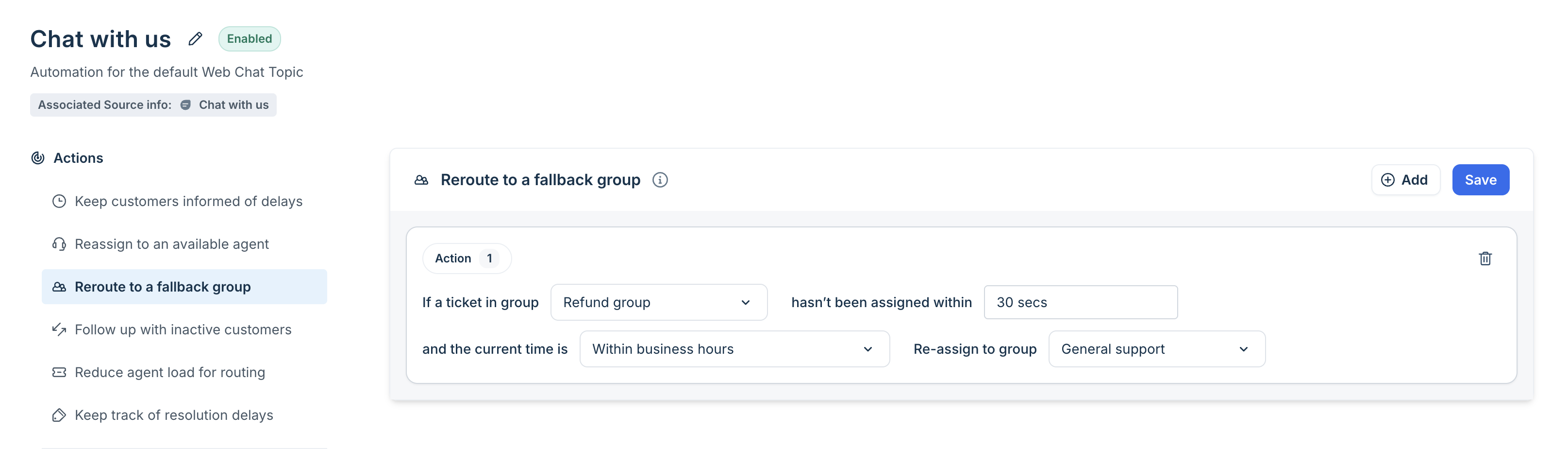
Use this Action when a primary support group reaches its capacity or when tickets remain unassigned for a prolonged period.
Example Scenario:
- Condition: If a ticket assigned to the "Refunds" group remains unassigned for 5 minutes.
- Action: Reassign the ticket to the "General Support" group.
In the above scenario, if a ticket is assigned to "Refunds" at 9:00 AM and remains unassigned at 9:05 AM, the rule will automatically move it to "General Support." However, if that same ticket is assigned to a different group (e.g., "Billing") at 9:04 AM, the rule will not trigger or execute, as the "unassigned for 5 minutes" condition is no longer met.
Configuration:
Input: “If a ticket in group ___ hasn’t been assigned within ___”
What you do:
- Select the original group to which the ticket belongs.
- Set the number of seconds the ticket can remain unassigned before it is automatically reassigned.
Input: “and the current time is” (Any / Within business hours/Outside business hours)
What you do: Choose if this applies anytime or only during business hours.
Input: “Re-assign to group ___”
What you do: Select the fallback group the ticket should move to when it’s not assigned fast enough.
D. Follow Up With Inactive Customers

Use this rule to nudge customers who go silent during a conversation. For example, if a customer stops replying for 30 seconds while talking to either an AI Agent or a human agent, you can automatically send a gentle follow-up, such as “Hey, you still there?” to re-engage them and keep the conversation moving.
Input: “If a customer hasn’t replied to an agent (AI or human) within ___”
What you do: Enter the number of seconds/minutes to wait after an agent reply before sending a follow-up message.
Input: “Send message to customer.”
What you do: Enter the reminder message, such as “Hey, you still there?”
This is what the customer will receive after the inactivity period has expired.
Click + Add to add more rules for additional follow-up
Note: When an AI agent hands over a ticket to a human, this template will not follow up with the customer if they haven't responded to the AI agent's handover message.
E. Reduce Load When Customers Don’t Respond
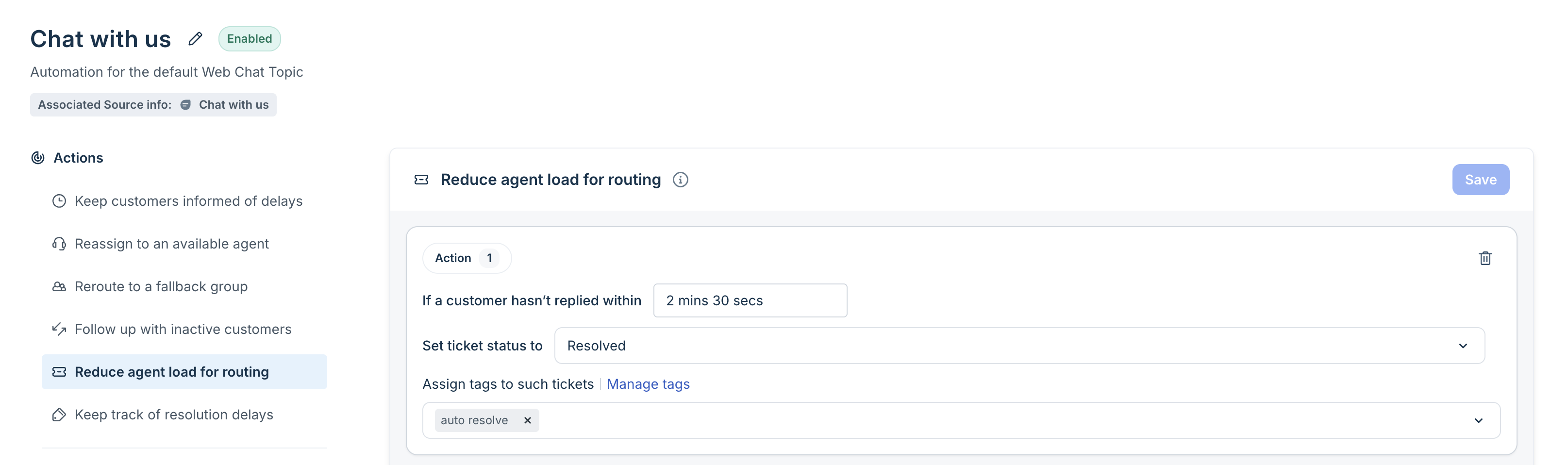
Use this Action to automatically change the ticket status if the customer is inactive. For example, if an agent is fully loaded with three tickets, but two of those have no customer response, you can automatically update the status of those tickets. This frees up the agent’s capacity, allowing new incoming tickets to be assigned to them.
Input: “If a customer hasn’t replied within ___”
What you do: Enter the number of minutes/seconds to wait after the agent’s reply before marking the ticket with a new status.
Input: “Set ticket status to ___”
What you do: Select the status that should be applied automatically (Pending/Resolved/Closed/Waiting on Customer).
Input: “Assign tags to such tickets.”
What you do: Add one or more tags so you can identify and filter these auto-resolved or inactive chat tickets later. Click Manage tags to view the list of tags.
F. Keep track of resolution delays
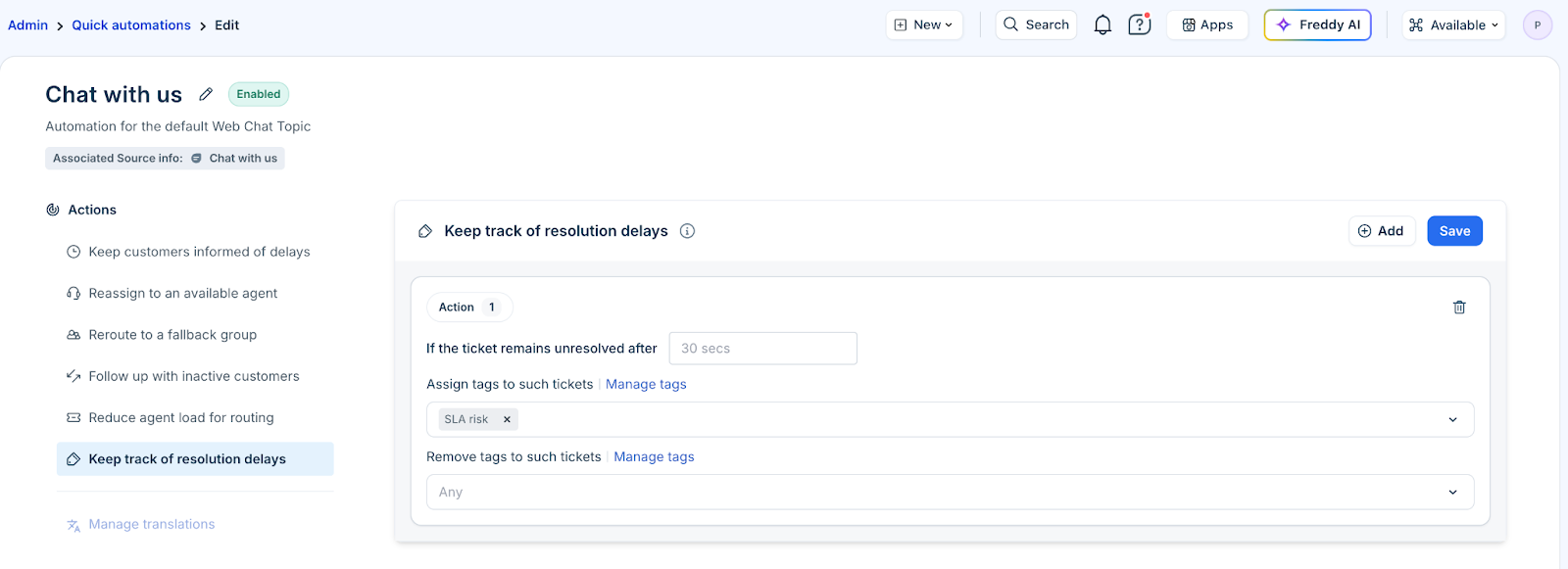
Use this Action to automatically tag tickets that remain unresolved beyond a specified time. This helps you identify potential SLA risks, monitor queue delays, and proactively intervene before resolution times slip.
Input: “If the ticket remains unresolved after ___”
What you do: Enter the number of minutes/seconds to wait before Freshdesk Omni marks the ticket as delayed.
Input: “Assign tags to such tickets”
What you do: Add a tag (for example, SLA risk or waiting_in_queue) to easily filter and track delayed tickets. Click Manage tags to create or view available tags.
Input: “Remove tags from such tickets”
What you do: Select a tag that should be automatically removed when this rule runs. Use this only if you want to clean up or replace an existing label in your delay-tracking workflow.
Note: Type at least 2 characters in the tag field to see existing tags. To create a new tag instantly, click Create <tag name>.
Limitations
- Rules per Template: A maximum of 5 rules (if template allows multiple rules).
- Triggers per Source: You can create only one Quick Automation per real-time channel. This means each channel: Web Chat, WhatsApp, Facebook, and Instagram DM can have its own single trigger setup, and you can’t create multiple Quick Automations for the same source.