
 Community
 Video Library
 Agent Training
 Freshservice
 Freshdesk
 Freshchat
 Freshcaller
 Freshsales
 Freshteam
 Freshworks Neo
 Freshsurvey
 Growth
TABLE OF CONTENTS
- Mobile Chat SDK Widget Overview
- Prerequisites
- Set up the SDK
- User identification & authentication
- Deploy the SDK
- Handle Push Notifications
- URL Handling on SDK
- Fetch Unread Count
- Track user events via SDK
Mobile Chat SDK Widget Overview
The Freshdesk Mobile Chat SDK allows you to engage with users directly within your mobile app and manage their queries in real time. The SDK supports both anonymous and authenticated users and renders as an integrated, in-app chat interface that blends seamlessly with your app’s UI. Each new chat initiated through the SDK is automatically created as a separate ticket in your Freshdesk inbox, enabling efficient tracking, follow-up, and support.
Prerequisites
Platform Requirements
Android
Freshdesk Android SDK clients require devices running Android 8 Oreo (API level 26) or higher.
Web Chat Widget configuration
The Mobile Chat SDK is fully powered by the Web Chat Widget configuration in terms of both content and appearance. This means that you must first configure a Web Chat Widget with the appropriate content (such as live chat topics, knowledge base categories, and web forms) and appearance settings including branding, logos, and colors.
All these configurations are automatically inherited by the Mobile Chat SDK and will reflect exactly the same within your mobile app once the SDK is integrated. For more information, see Overview of Web Chat Channel.
Set up the SDK
To enable the Mobile Chat SDK in your mobile app:
- Log in to your account as an admin.
- Go to Admin > Channels > Mobile Chat SDK.
- Click Create new.
- Select an existing web chat widget or create a new web chat widget, as the Mobile Chat SDK inherits its configuration.
- In the Mobile SDK config section, obtain the setup instructions and integration keys.
- Follow the platform-specific integration steps in your mobile app.
- Once integrated, the chat interface will automatically appear in your app, powered by your Web Chat Widget settings.
User identification & authentication
Freshdesk supports JSON Web Token (JWT) based authentication to securely identify users interacting with the Mobile Chat SDK. By enabling JWT authentication, you can ensure that only verified users are allowed to initiate conversations through your mobile-integrated chat experience. This helps maintain a secure and personalized support flow inside your app.
User history and conversations will be maintained and restored via this JWT approach. For more details, see Create Widgets.
How JWT Authentication works?
- Conversation Initiation: A user opens the chat interface within your mobile app through the Mobile Chat SDK.
- Token Request: The app requests or generates a signed JWT token containing the user’s identity information (such as email or name) from your backend.
- Chat Initialization: The Mobile Chat SDK initializes the chat session by passing the JWT token to Freshdesk during startup.
- Token Verification: Freshdesk validates the JWT token, extracts the user details from the payload, and grants access to the authenticated chat session.
Deploy the SDK
To deploy the SDK:
- Go to Admin > Mobile Chat SDK > Create SDK.
- In the SDK configuration, you’ll find the credentials needed to initialise the SDK in your mobile app.
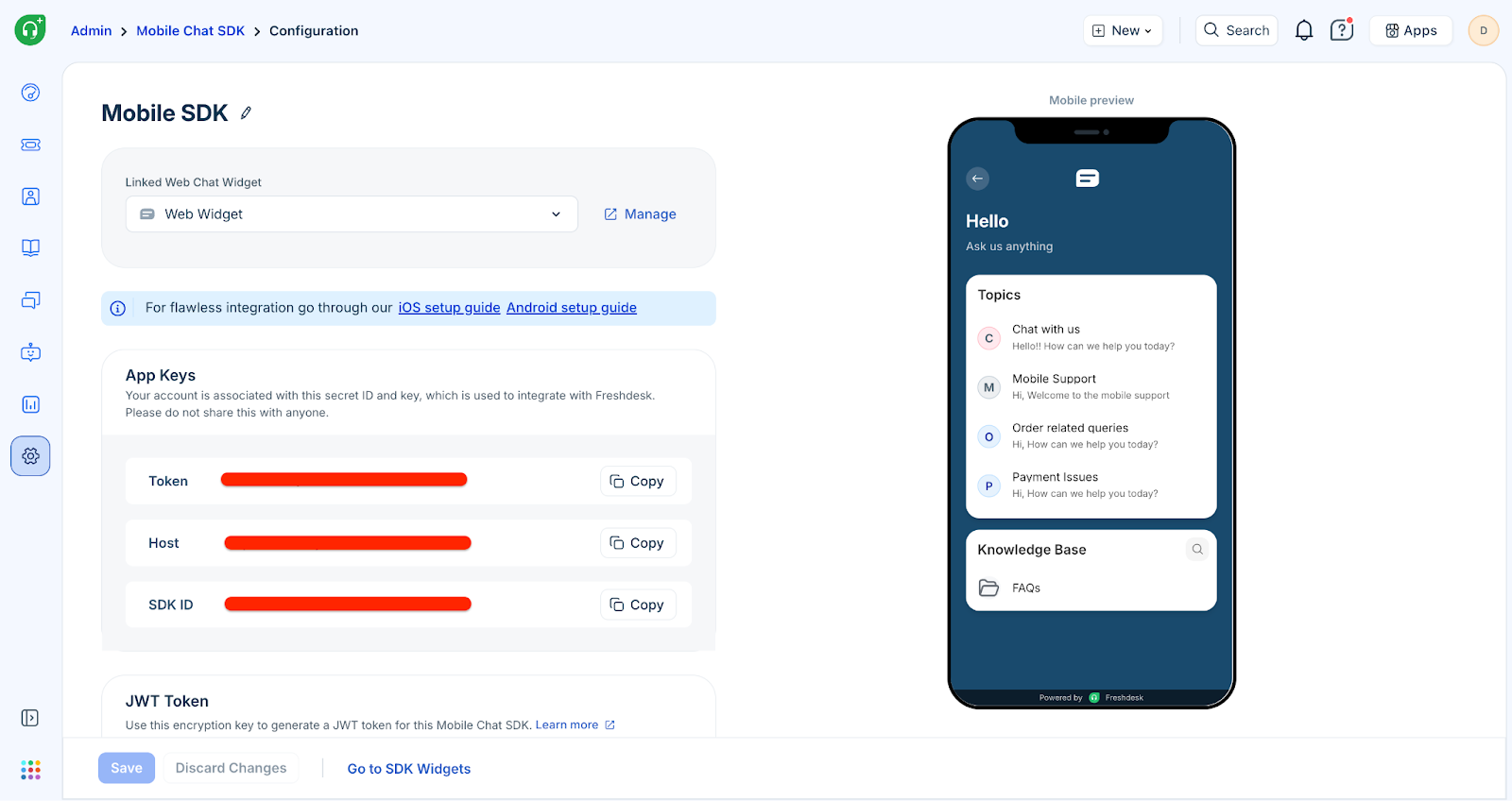
Initializing the SDK
Android (Kotlin)
Initialise the SDK by using the method shown below in the appropriate place in your code.
FreshdeskSDK.initialize(
context = context,
config = SDKConfig(
token = "<YOUR_TOKEN>",
host = "<YOUR_HOST>",
sdkID = "<YOUR_SDK_ID>",
locale = "<YOUR_APP_LOCALE>", // Set your desired locale here
jwt = "<YOUR_JWT>", // Optional: provide JWT if available
debugMode = true // Enable debug mode for logging
)
) {
// SDK initialized successfully.
// Safe to perform additional SDK operations here.
}
Setting user properties
To set user properties, use the method below as a reference.
Note:
- Ensure that these properties are whitelisted under the Contact Fields of the SDK-linked widget.
- For JWT-enforced SDKs, updating user properties is handled via the JWT payload. Please refer to the 'JWT' section below.
Android (Kotlin)
valuserProperties:Map<String,Any>=mapOf(
"name"to"Mobile Android SDK",
"address"to"Chennai, India",
"mobile"to"1234567890",
"phone"to"9876543210",
"customnumber"to123 //custom user field
)
FreshdeskSDK.setUserProperties(userProperties)
Setting ticket properties
To set ticket information, use the method below as a reference.
Note: Ensure that these properties are whitelisted under the Ticket Fields of the SDK-linked widget.
Android (Kotlin)
val ticketProperties: Map<String, Any> = mapOf(
"subject"to"Product Enquiry",
"priority"to3,
"cf_custom_ticket_field" to"samplevalue"//custom ticket field
)
FreshdeskSDK.setTicketProperties(ticketProperties)
Handle Push Notifications
To enable real-time push notifications for incoming messages, the required push notification configuration data must be added to the Mobile Chat SDK during initialization. This includes the appropriate platform-specific notification certificates or keys.
The steps to obtain these certificates/keys and update the SDK configuration are outlined below.
Step 1: Upload your FCM Service Account Key from Firebase:
Click Admin > Mobile Chat SDK > Push Notification.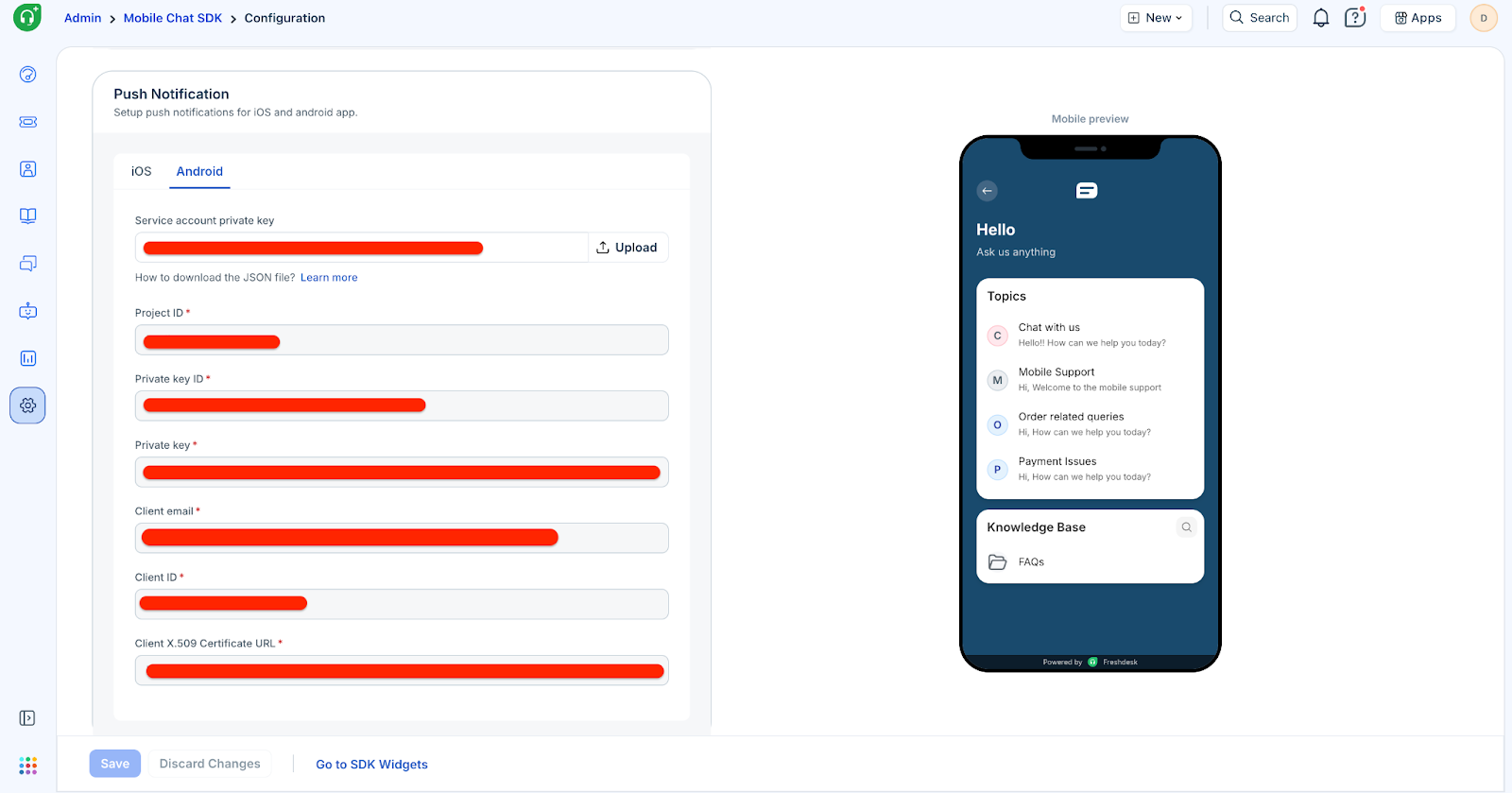
Here’s how you can get your FCM Service Account Key from Firebase:
- Go to the Firebase Console and select your project.
- Click Project Settings (gear icon) → Service Accounts.
- Click Generate new private key and confirm.
- A JSON file will be downloaded, this is your FCM Service Account Key.
Step 2: Add google-services.json to your project
- Go to the Firebase Console and select your project.
- Click Project Settings (gear icon) → Your apps.
- Select your Android app (or add a new one).
- Click Download google-services.json.
- Place the downloaded file in your app’s project directory (app/).
Step 3: Create Firebase Messaging Service
classMyFirebaseMessagingService:FirebaseMessagingService(){
overridefunonNewToken(token:String){
super.onNewToken(token)
// Register the new FCM token with Freshdesk SDK
FreshdeskSDK.setPushRegistrationToken(token)
}
overridefunonMessageReceived(message:RemoteMessage){
super.onMessageReceived(message)
// Check if the message is from Freshdesk SDK
if(FreshdeskSDK.isFreshdeskSDKNotification(message.data)){
// Handle the Freshdesk notification
FreshdeskSDK.handleFCMNotification(message.data)
}
}
}
Step 4: Register the Service in AndroidManifest.xml
<service
android:name=".MyFirebaseMessagingService"
android:exported="false">
<intent-filter>
<action android:name="com.google.firebase.MESSAGING_EVENT"/>
</intent-filter>
</service>
URL Handling on SDK
The Freshdesk Mobile Chat SDK provides flexible URL handling so you can control how different types of links behave within your mobile app. Depending on your app’s navigation structure and user experience requirements, you can customize the way the SDK processes various URL types.
The supported URL categories include:
- In-app rich deep links: Routes users to specific screens or features inside your app.
- External URLs: Opens web pages outside the app, typically using the system browser or an in-app web view, based on your custom implementation.
- Solution article URLs: Opens Freshdesk Knowledge Base articles directly within the Mobile Chat SDK’s built-in article viewer for a seamless in-app support experience.
This configurability allows you to maintain consistent navigation behavior and integrate the chat experience smoothly with your existing app flow.
By default, the SDK opens links from conversations or FAQs in the device browser. If you want to control how links are opened, you can provide a custom implementation of FreshDeskSDKLinkHandler.
Any Activity or Fragment can implement this interface and override the handleLink(url: String) method.
FreshdeskSDK.setLinkHandler(<FreshDeskSDKLinkHandler>)
Note: Make sure the application holds a solid reference to the implementation of the FreshDeskSDKLinkHandler (no weak references) or it may be garbage collected.
Fetch unread count
The Freshdesk Mobile Chat SDK allows you to fetch the unread message count for each live chat topic associated with your widget. This enables you to display badges or pills on entry points outside the Mobile Chat SDK, such as your app’s home screen, menu, or support section, indicating that new messages are waiting.
This ensures users are aware of pending conversations even before they open the chat interface.
To get the unread message count, you need to listen for an unread-count event using a broadcast receiver. The event will contain the total unread messages.
Register a broadcast receiver in an appropriate place in your app (such as an Activity or the Application class):
valunreadCountReceiver=object:BroadcastReceiver(){
overridefunonReceive(context:Context?,intent:Intent?){
if(intent?.action==SDKEventID.UNREAD_COUNT){
valunreadCount=intent.getIntExtra(SDKEventID.UNREAD_COUNT,0)
// Use unreadCount as needed
}
}
}
LocalBroadcastManager.getInstance(context).registerReceiver(
unreadCountReceiver,
IntentFilter(SDKEventID.UNREAD_COUNT)
)
Remember to unregister the receiver when it’s no longer needed to avoid memory leaks:
LocalBroadcastManager.getInstance(context).unregisterReceiver(
unreadCountReceiver
)
Track user events via SDK
Freshdesk lets you track user actions, such as updating a profile picture or adding items to a cart. These events can help you engage users, trigger messages, or segment users for campaigns.
Use the method below as a reference.
FreshdeskSDK.trackEvent(eventName="eventName",eventData=mapOf("eventName"to"eventValue"))