
 Community
 Video Library
 Agent Training
 Freshservice
 Freshdesk
 Freshchat
 Freshcaller
 Freshsales
 Freshteam
 Freshworks Neo
 Freshsurvey
Note: The new CSAT Agent experience only applies if you have signed-up after Dec 1, 2025. Not sure of your signup date? Learn how to find it here .
Once Admins have built and configured how surveys should be sent, agents have the option to add surveys when they:
Respond to tickets
In canned responses
While setting up an automation rule, or
In their email signature
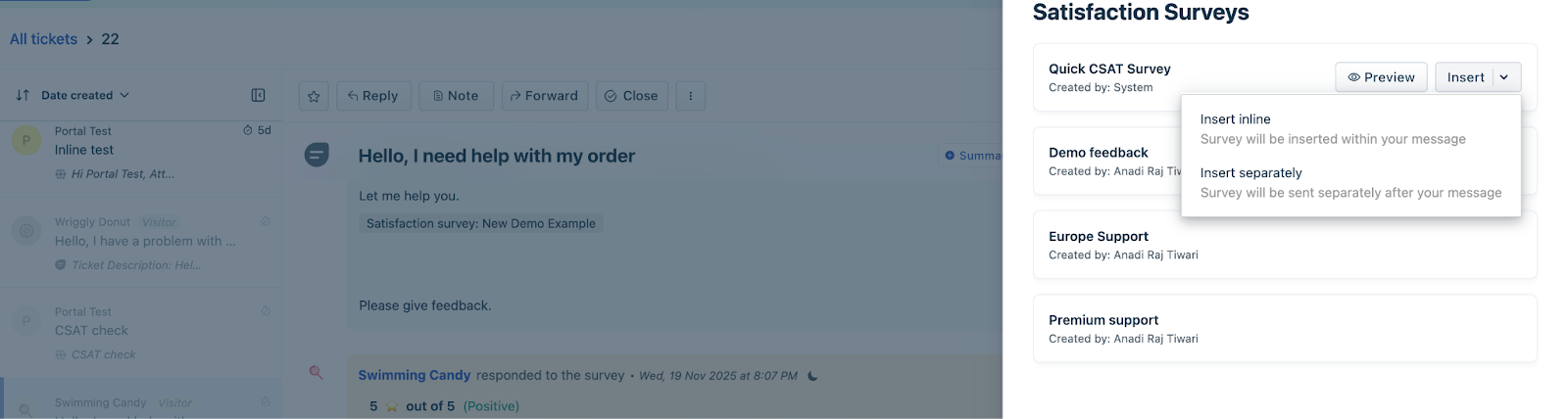
In all of the above methods, Agents can add surveys to emails in two ways:
Insert Inline – Adds the survey link directly within the message body. Use this when you want a quick, one-click response that doesn't distract from the main message. In the case of meta channels, the placeholder will be replaced by a survey link. In case of any other channels, the survey will be rendered in the applicable position.
Insert Separately – Places the survey in a separate section (e.g., at the end of the email).
Use this when you want the survey to stand out or when the email contains a lot of other details. In case of Email, survey will be attached tpwards the agent of the agent message. In the case of meta channels or web chat, survey will be sent as a new message.
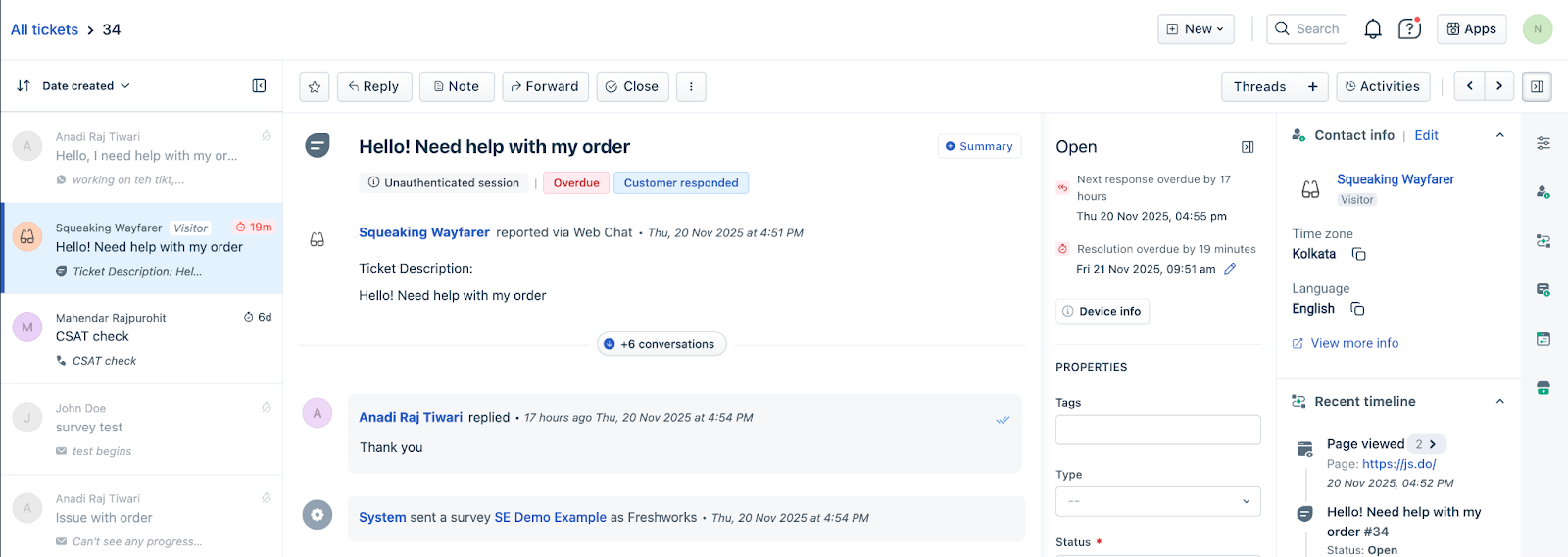
Agents can track surveys by clicking on Activities (top right) on the Ticket details page.
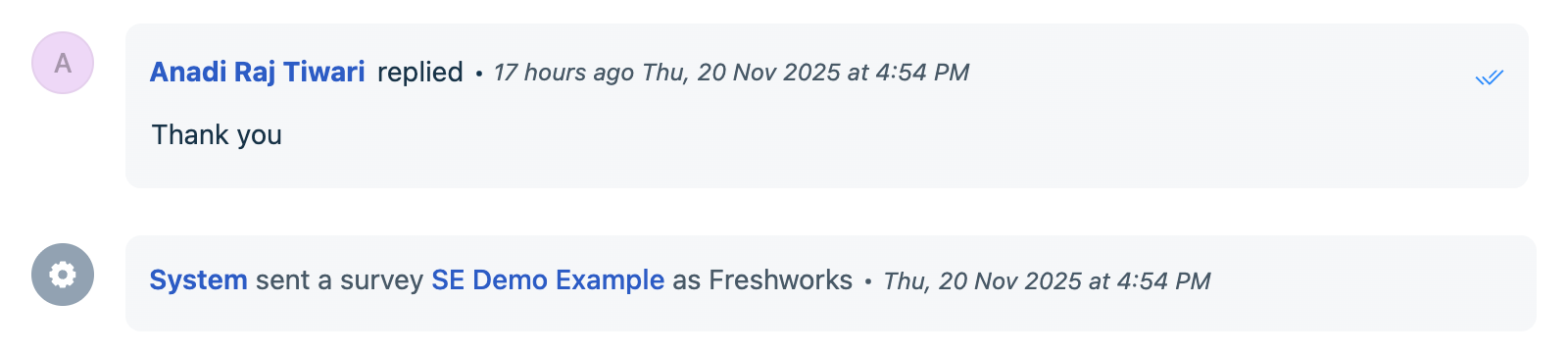
In the response cards, Agents can view the surveys that are sent along with the rating.

Agents can click on View response to view the survey responses.
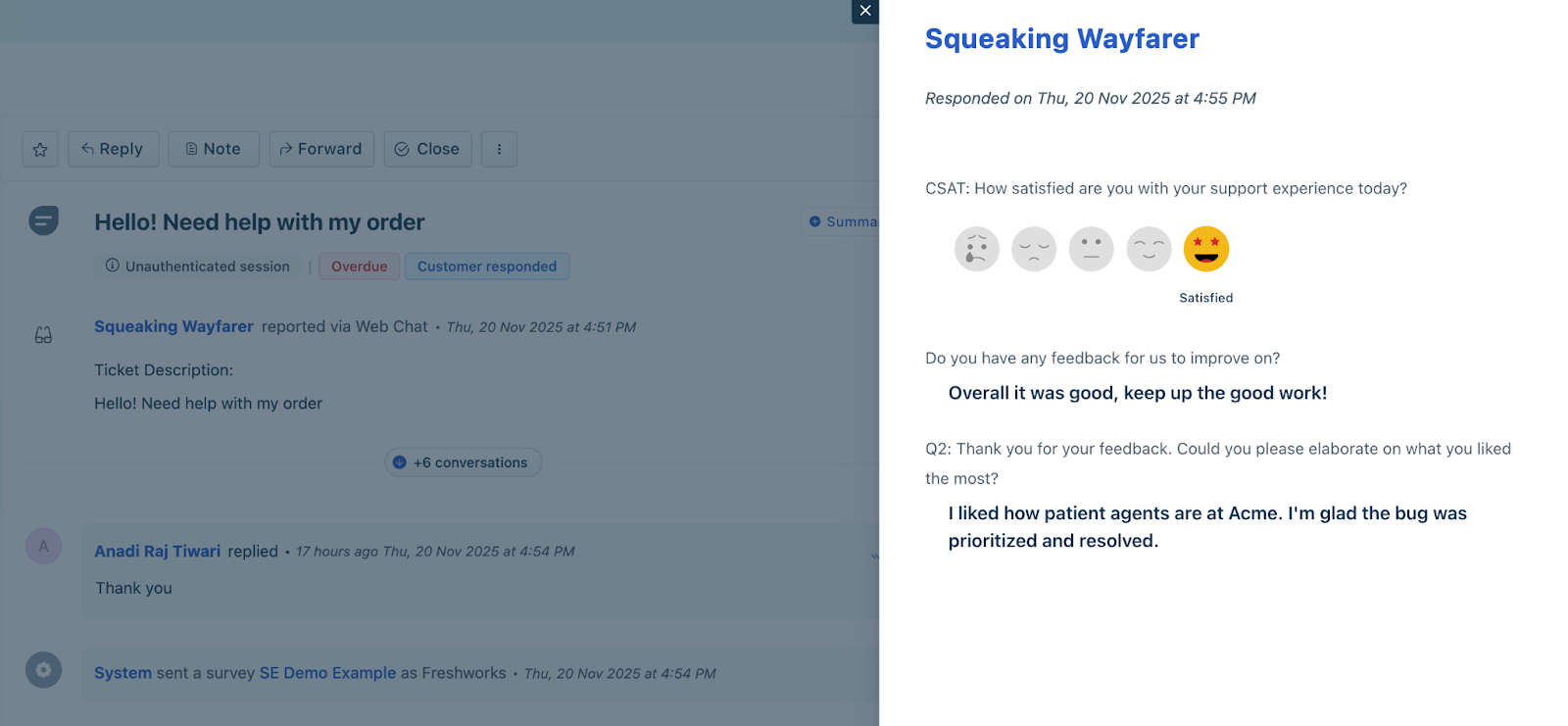
Viewing survey responses in the contact timeline
CSAT ratings are also available in the contact timeline. Agents can click View Response to view the customer's complete survey response.
Let’s look at how Agents can add surveys in detail:
Reply Editor
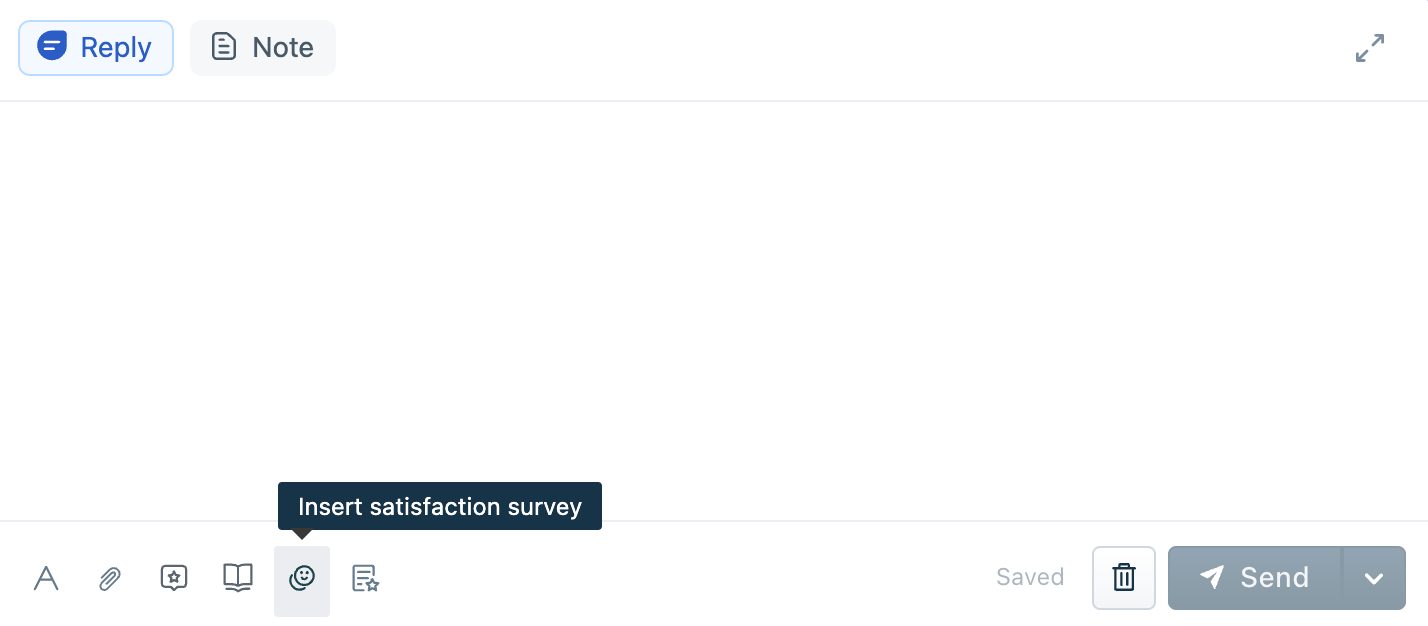
Agents can add a satisfaction survey to the reply editor by clicking the Insert satisfaction survey button. This will open an overlay where they can select the desired survey.
Email Signature
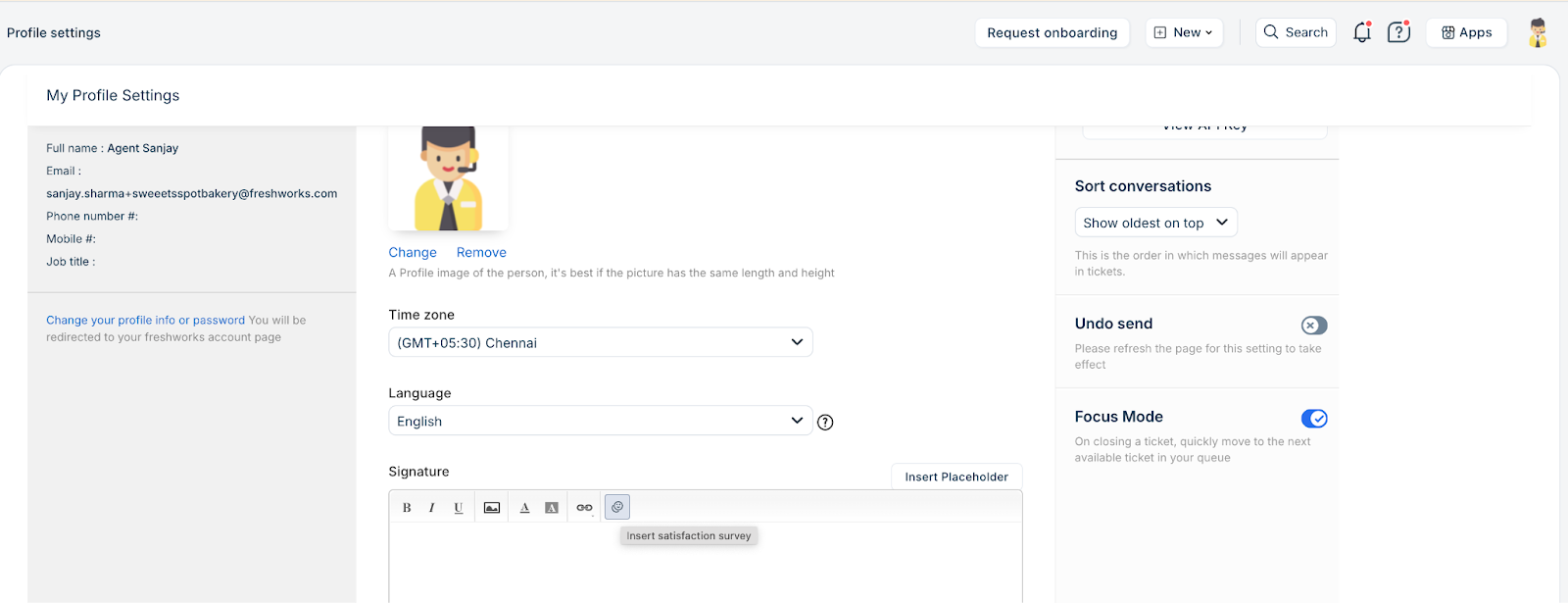
Agents can add a survey to their email signature to collect feedback on every reply, and it is not limited to ticket closure.
To add an email signature,
Click profile photo on the top right > Profile settings
In the Signature section, click Insert satisfaction survey
In the Satisfaction surveys overlay, choose the type of survey you want to add and click Save changes
As an admin you can also add a survey to an agent during agent creation from Admin > Agents > New Agent > Signature section
Canned responses
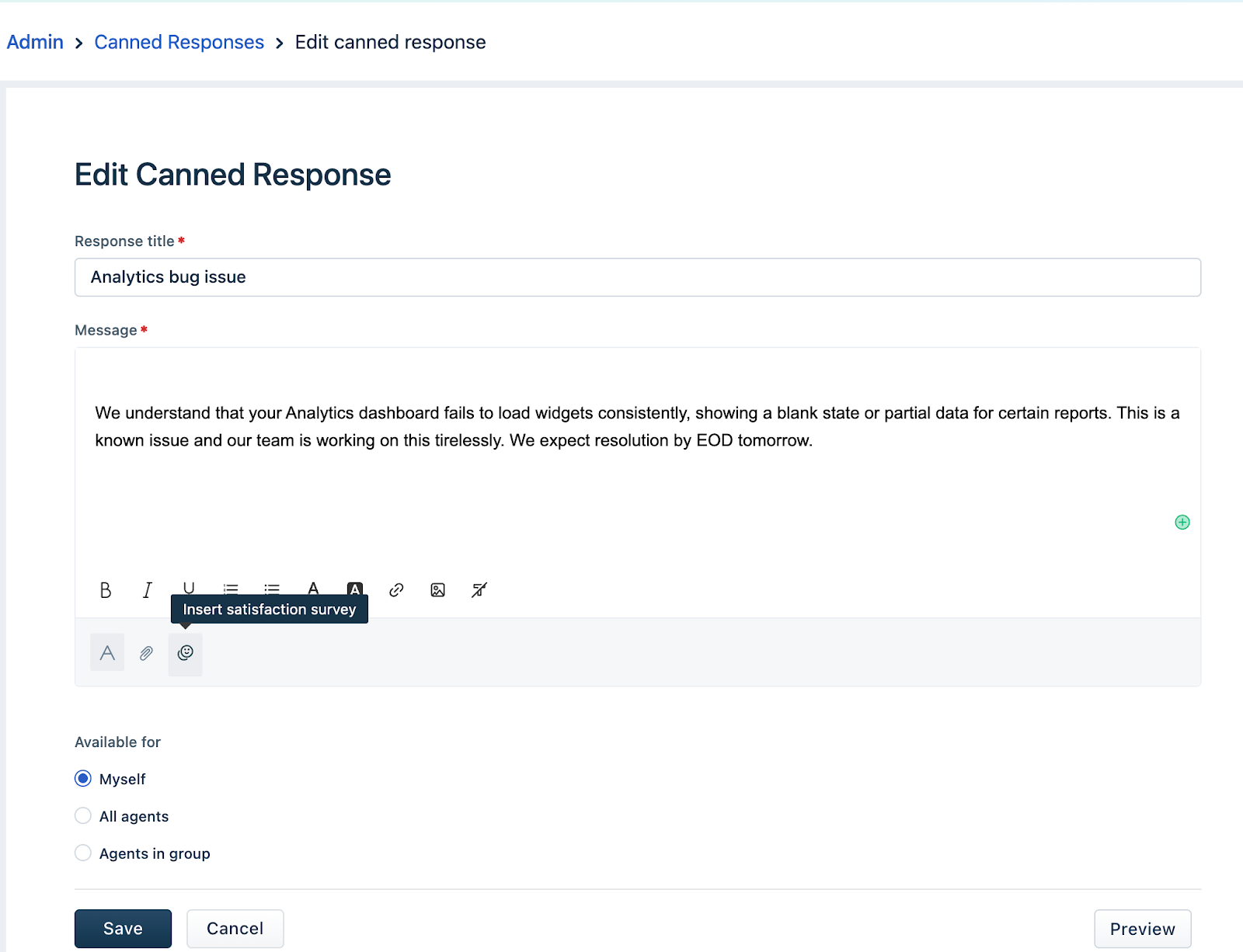
You can add a survey to canned responses. To add a survey to a canned response,
Go to Admin > Canned Responses > Edit an existing canned response or click New Canned Response to create a new response
In the messages section, click Insert satisfaction survey
In the Satisfaction surveys overlay that appears, choose the survey you want to add.
End-User Experience
When customers receive and respond to surveys, their experience varies slightly based on the survey type, the channel, and whether interactive surveys are supported.
Retaking Surveys
End-users can retake a survey and submit a fresh response as long as the survey is still within its expiry period. Each retake is tracked as a unique response in ticket details, dashboard, and analytics modules.
Partial Responses
Users can submit only the CSAT or only the first question and return later to finish the remaining questions.
If they don’t complete the rest, the survey is marked as 'Partially Completed' after 24 hours or when the survey expires, whichever comes first. Such responses wil be available in ticket details page and in Analytics.
Handling Multiple Requests for the Same Survey
When a user rates a survey linked to a ticket, all open survey requests for that specific survey are marked as collected.
The user still has the option to retake the survey if needed.
When Surveys Fall Back to Web Links (Meta Channels)
Customers on Meta channels (Facebook, Instagram, WhatsApp) receive a web survey link instead of an interactive survey when:
The survey cannot be rendered interactively on that channel.
The agent inserts the survey inline along with a message.
The survey type is incompatible with the channel.
Note: Surveys not rendering can be checked by using the Preview option available in each channel. Here, while creating or editing a survey, use the Preview button while configuring the survey for any channel.
Invalid Response Handling (Meta Channels)
If an end-user sends an invalid reply to an interactive survey question (e.g., typing text for a list-type question), they are shown the same question again once.
If they send a second invalid reply, both responses are logged on the ticket.
This optimization ensures higher CSAT completion rates.
Channel Compatibility Notes
Some survey formats are not supported as interactive messages on Meta channels such as Facebook, Instagram, and WhatsApp.
When a survey is incompatible with a Meta channel, Freshdesk automatically sends it as a web link instead, ensuring customers can still complete it without any issues.