
 Community
 Video Library
 Agent Training
 Freshservice
 Freshdesk
 Freshchat
 Freshcaller
 Freshsales
 Freshteam
 Freshworks Neo
 Freshsurvey
 Growth
 Pro
ProThis article describes the chatbot templates that connect to a third-party service in Freshdesk Omni, the account and credentials each one requires, and the flows they provide.
TABLE OF CONTENTS
- Prerequisites
- Overview of integration templates
- Shopify templates
- Things to keep in mind
- Unlock new AI-powered possibilities
Prerequisites
Before you use an integration chatbot template, ensure the following requirements are met:
- Ensure you have admin access to AI Agent Studio in your Freshdesk Omni account.
- Ensure you know how to find a template and create a chatbot from it. See use pre-built chatbot templates in Freshdesk Omni <anchor link>.
- Ensure you have an account with the third-party service and access to its API credentials.
- Ensure the third-party account is connected before you publish a chatbot built from one of these templates.
Overview of integration templates
An integration template contains flows that call a third-party service rather than only your own APIs. The flows do not work until you connect the relevant account and replace the template's placeholder credentials with your own.
The Shopify integration template is currently available for use. You connect your Shopify account, create a chatbot from the template, replace the placeholder API configuration with your own credentials, then preview and deploy.
Shopify templates
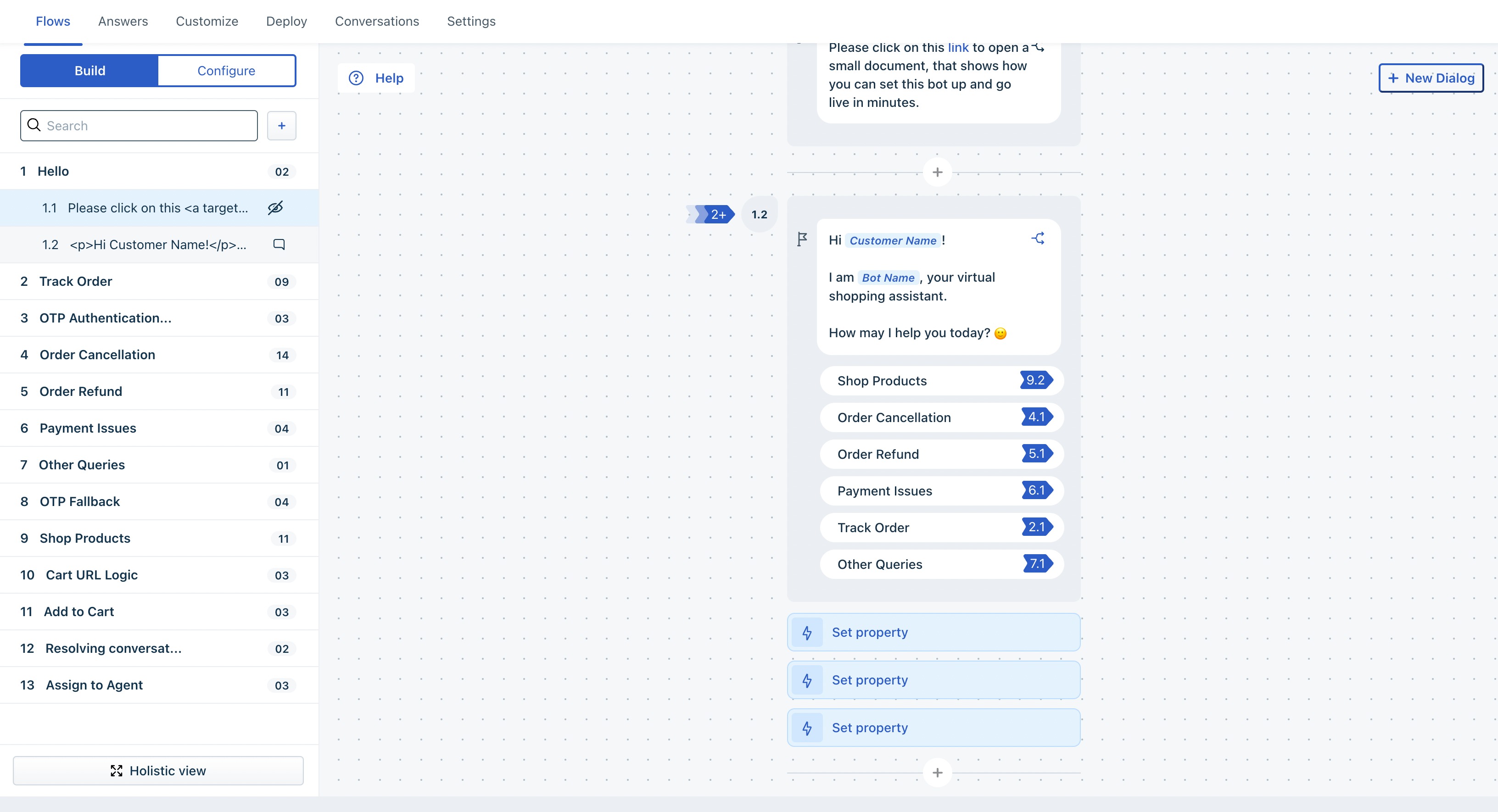
Shopify templates automate order tracking, cancellations, and refunds for a Shopify store, and allow customers to shop inside a chatbot conversation.
Note: Your Shopify account must be integrated with your Freshmarketer or Freshsales Suite account before these templates work. See set up the Shopify integration.
Three Shopify templates are available:
- Shopify Bot — Automates and tracks orders, and collects context for refunds, cancellations, and payment issues.
- Shopify Bot for WhatsApp — The same capabilities, optimized for the WhatsApp channel.
- Shopify Advanced Bot — Automates order tracking, refunds, and cancellations, and collects context for payment issues.
Flows in the Shopify templates
- Track order — Customers view order details and status, get the tracking URL and open it in a new tab, and view the price and quantity of each line item, the payment status, and the fulfillment status.
- Order cancellation — For an unpaid order, the chatbot cancels the order. For a paid order, the chatbot cancels the order and triggers a refund.
- Order refund — The chatbot lists the orders eligible for a refund and, once triggered, refunds the amount to the customer. Any completed or fulfilled order that has been paid for, by cash on delivery or prepaid, is eligible.
- Shop Products — Customers place orders in the conversation. The chatbot recommends products, provides options to add and check out products, collects the order items and address details, then redirects the customer to the Shopify website for payment. This flow requires Shopify store tokens. See generate Shopify store tokens <anchor link>.
- Payment issues — The chatbot lists common payment issues, collects the context, and transfers the conversation to an agent.
- Other queries — This flow connects to your FAQ content for policies and questions the other flows do not cover. It is disabled by default, so enable it and connect your knowledge base if you want to use it.
Things to keep in mind
- Placeholder credentials — Every integration template ships with placeholder API configuration. Replace it with your own credentials before you publish.
- Third-party setup comes first — Connecting the Shopify account happens outside Freshdesk Omni and must be complete before the flows work.
- Channel variants — Shopify offers a WhatsApp-specific template. Choose the variant that matches the channel you intend to deploy on.
Unlock new AI-powered possibilities
We encourage you to explore the latest version of Freddy AI Agents to unlock new AI-powered capabilities. While chatbot templates remain available, we recommend looking into Freddy AI Agents to see how they can further enhance your customer support experience.