
 Community
 Video Library
 Agent Training
 Freshservice
 Freshdesk
 Freshchat
 Freshcaller
 Freshsales
 Freshteam
 Freshworks Neo
 Freshsurvey
TABLE OF CONTENTS
- Prerequisites
- Overview of Summary Generator
- Enable Summary Generator
- Configure Summary Content and Data Sources
- Configure instructions for summaries
- Preview a summary before publishing
- Generate a ticket summary
- Manage a ticket summary
- Things to keep in mind
Summary generator, a built-in Copilot Agent feature, generates a concise summary of a ticket from its conversation and notes, so agents can understand the issue and seamlessly hand off context without reviewing the entire conversation thread. This article explains how Summary generator creates ticket summaries in Freshdesk, how to configure summary content, data sources, and custom instructions, and how agents can generate and manage summaries.
Prerequisites
Before you configure or use Summary generator:
- Ensure your account has the Freddy AI Copilot add-on on a supported plan.
- Ensure you have administrator access to AI Agent Studio to configure Summary generator.
- Ensure agents have a Freddy AI Copilot license assigned.
Overview of Summary Generator
Summary generator creates concise summaries from ticket conversations and relevant ticket information. Summaries help agents understand issues quickly, review previous troubleshooting, and share context during handoffs and collaboration.
You can configure the information included in summaries, select the ticket data used to generate them, and customize the instructions Freddy AI follows.
Summary generator provides the following capabilities:
- Configurable summary content — Choose what Freddy AI adds to the summary in addition to the default overview, such as a troubleshooting timeline and customer sentiment.
- Configurable data sources — Choose the ticket data Freddy AI refers to, such as notes, the activity timeline, ticket fields, and child tickets.
- Ticket field selection — Select up to 5 default or custom ticket fields to include as context.
- Configurable instructions — Define the tone, rules, and fallback behavior Freddy AI follows when it writes the summary.
- Preview — Test your settings on a real ticket before agents see the change.
Summary generator settings are organized into two pages. The Configuration page controls the ticket data used as context and the content of the summary. The Instructions page controls the tone, rules, and behavior Freddy AI follows when it writes the summary.
Summary generator delivers summaries in the agent's profile language.
Enable summary generator
To enable Summary generator:
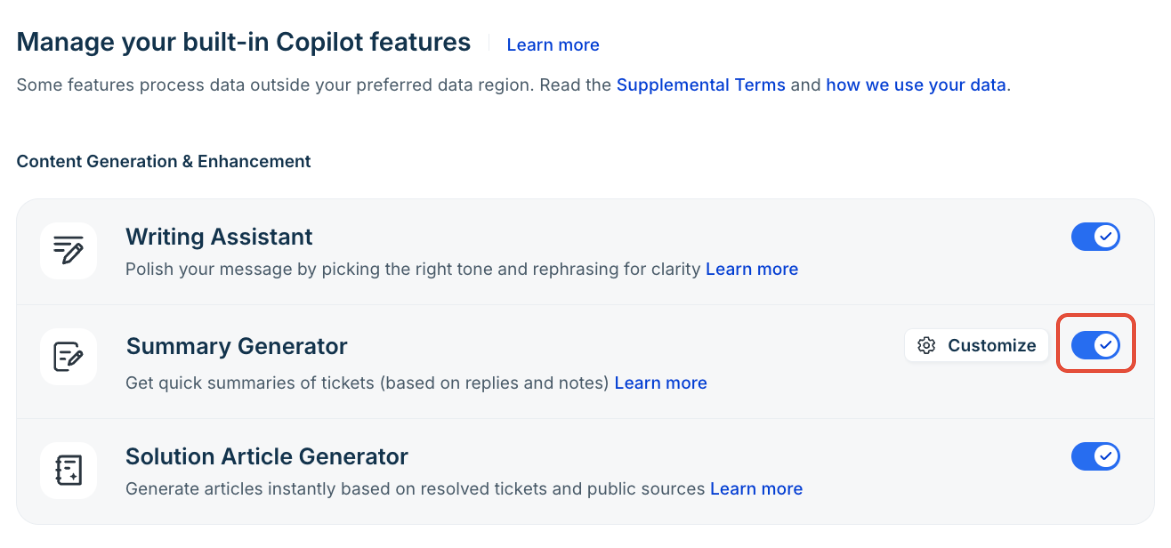
- Go to AI Agent Studio > AI Copilot.
- Under Content Generation & Enhancement, toggle ON Summary generator.
Configure summary data sources and automatic generation (coming soon)
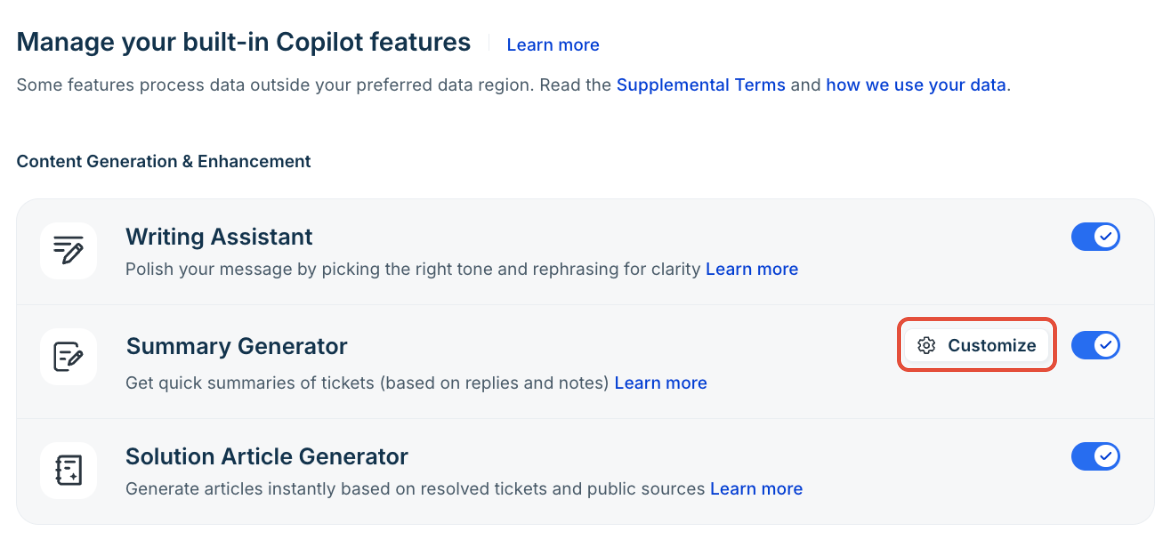
Go to AI Agent Studio > AI Copilot.
Select Customize next to Summary generator.
In the left pane, under Build, select Configuration.
Under Data sources for summaries, choose the information Freddy AI can use to generate summaries.
(Optional) Configure Auto generation of summaries to generate summaries automatically based on ticket activity.
Save or publish your changes.
Choose data sources
Under Data sources for summaries, toggle each source ON or OFF to control which additional ticket information Freddy AI uses when generating summaries.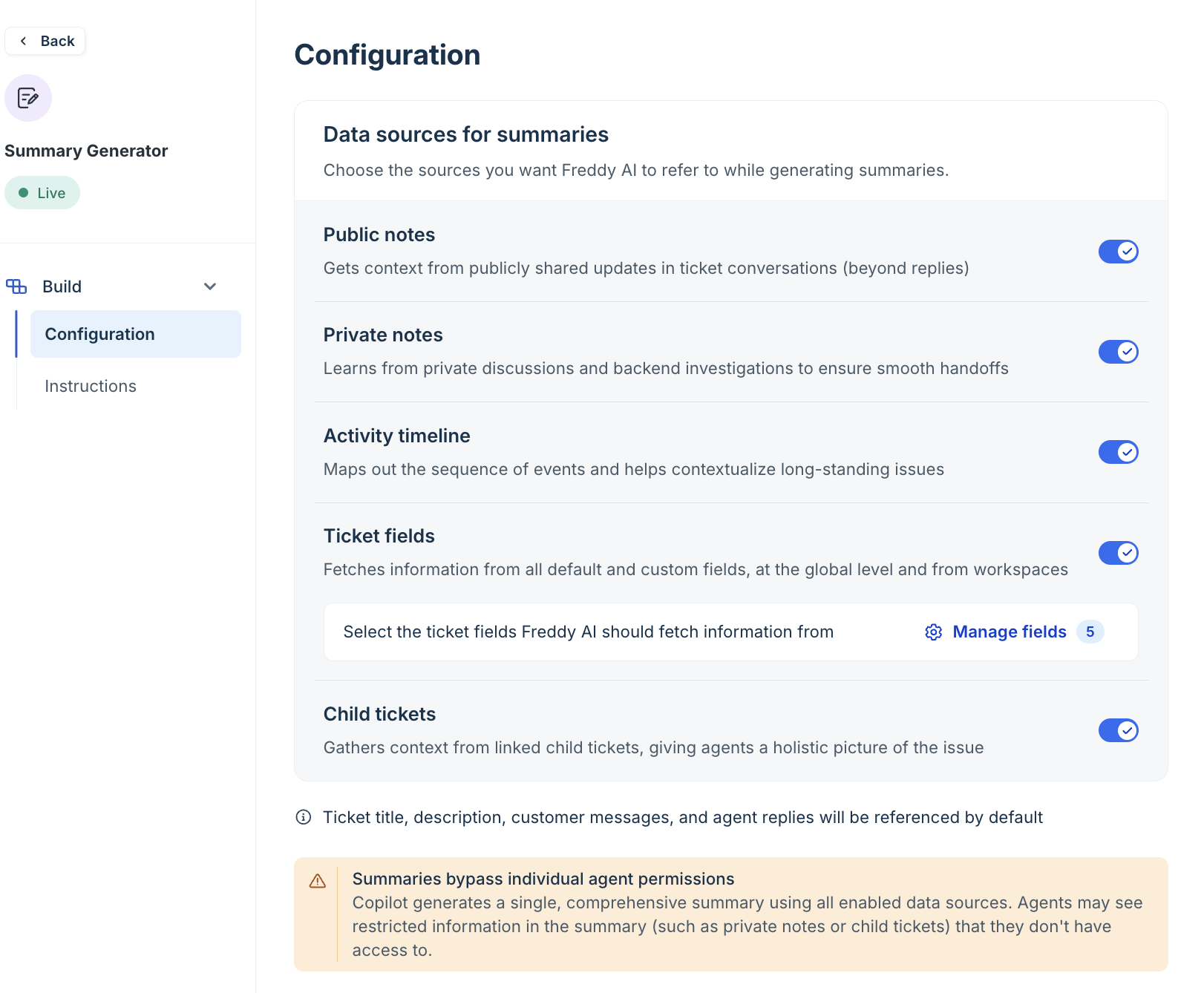
| Data source | Information included |
|---|---|
| Public notes | Publicly shared updates that provide context beyond customer messages and agent replies. |
| Private notes | Internal discussions and investigation details that help agents understand the issue during handoffs. |
| Activity timeline | The sequence of ticket events, providing context for long-running issues. |
| Ticket fields | Information from the default and custom ticket fields you select. |
| Child tickets | Context from linked child tickets to provide a more complete picture of the issue. |
The ticket title, description, customer messages, and agent replies are always included as reference information, regardless of your data source selections.
Select ticket fields
When Ticket fields is enabled, you can select up to 5 default or custom ticket fields for Freddy AI to reference.
Under Ticket fields, select Manage fields.
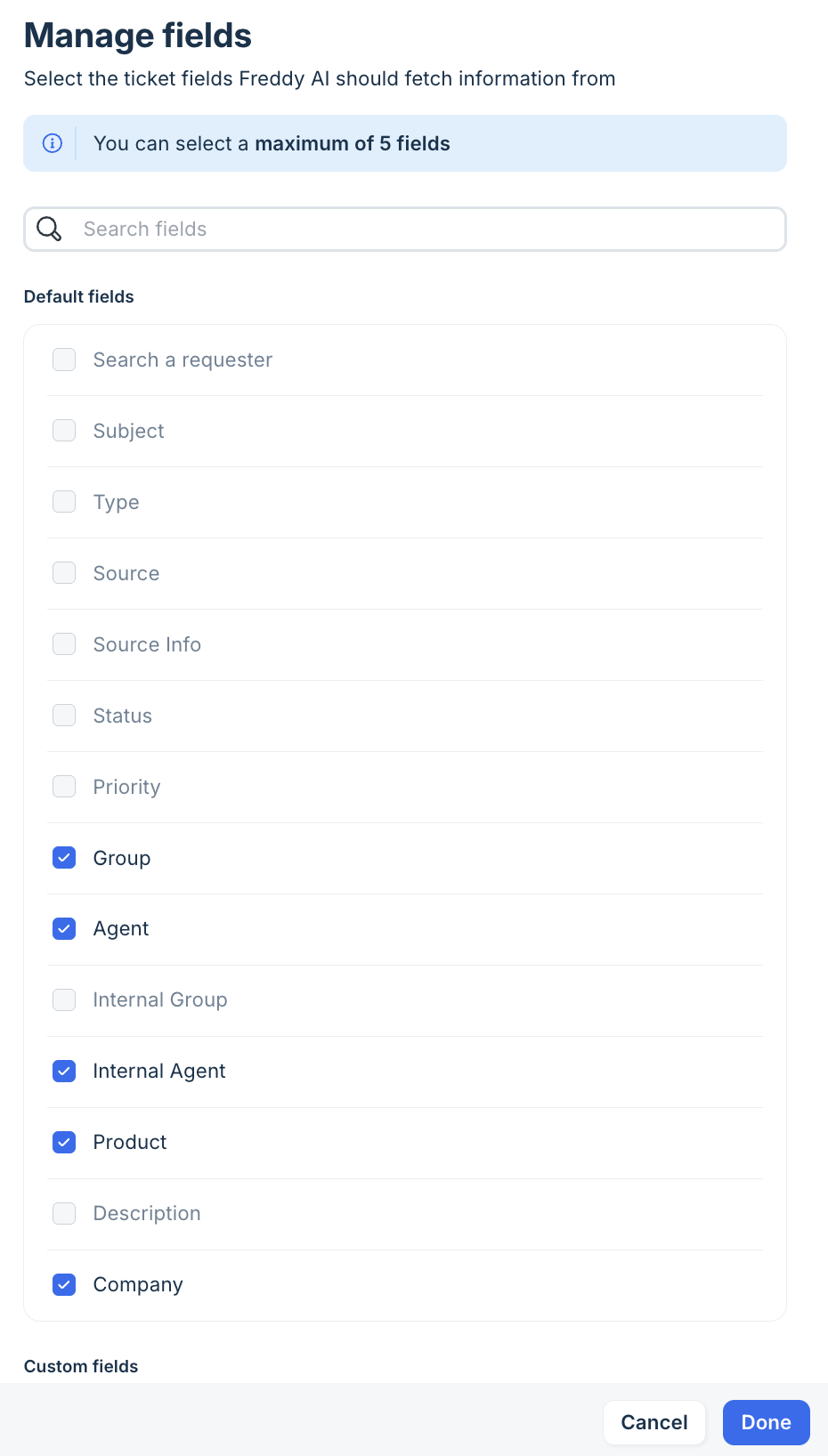
Search for fields or browse the lists under Default fields and Custom fields.
Select up to 5 fields.
Select Done.
The number of selected fields appears next to Manage fields.
The available default fields include Subject, Type, Source, Status, Priority, Group, Agent, Internal Group, Internal Agent, Product, Description, and Company.
Understand summary permissions
Summaries can include information that an agent cannot access directly. Freddy AI generates a single summary using all enabled data sources, regardless of the individual agent’s permissions. For example, a summary may include private notes or information from child tickets that the agent cannot access.
Review your data source selections carefully to avoid exposing restricted information through summaries.
Configure automatic summary generation
You can configure Summary generator to create summaries automatically when a ticket receives new messages or when an agent closes it.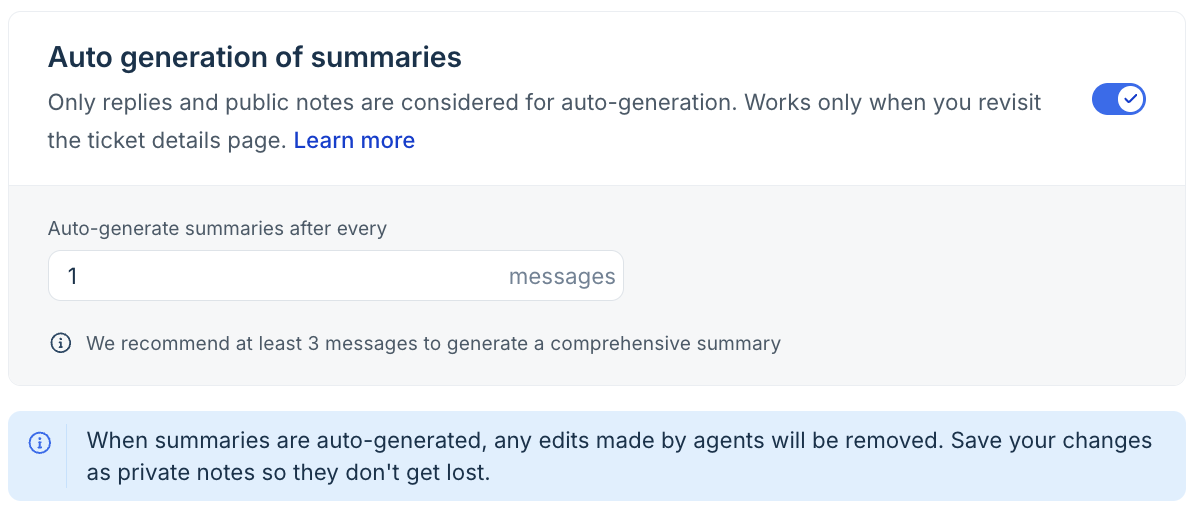
| Setting | What it does |
|---|---|
| Auto generation of summaries | Regenerates the summary after a specified number of new messages. Only replies and public notes count toward this threshold. |
| Auto - generate summary when a ticket is closed | Generates a summary when the ticket is closed. |
To configure automatic generation:
Toggle ON Auto generation of summaries.
Under Auto-generate summaries after every, enter the number of new messages that should trigger a summary. We recommend at least 3 messages for a comprehensive summary.
(Optional) Toggle ON Auto - generate summary when a ticket is closed.
 Save or publish your changes.
Automatic summaries are generated only when an agent revisits the ticket details page.
Note: Automatic generation replaces the existing summary, including any edits an agent made to it. To preserve important changes, agents can save them as private notes before the summary is regenerated.
Configure instructions for summaries (coming soon)
Instructions control how Freddy AI generates summaries, including the tone, information it prioritizes, and how it handles missing details.
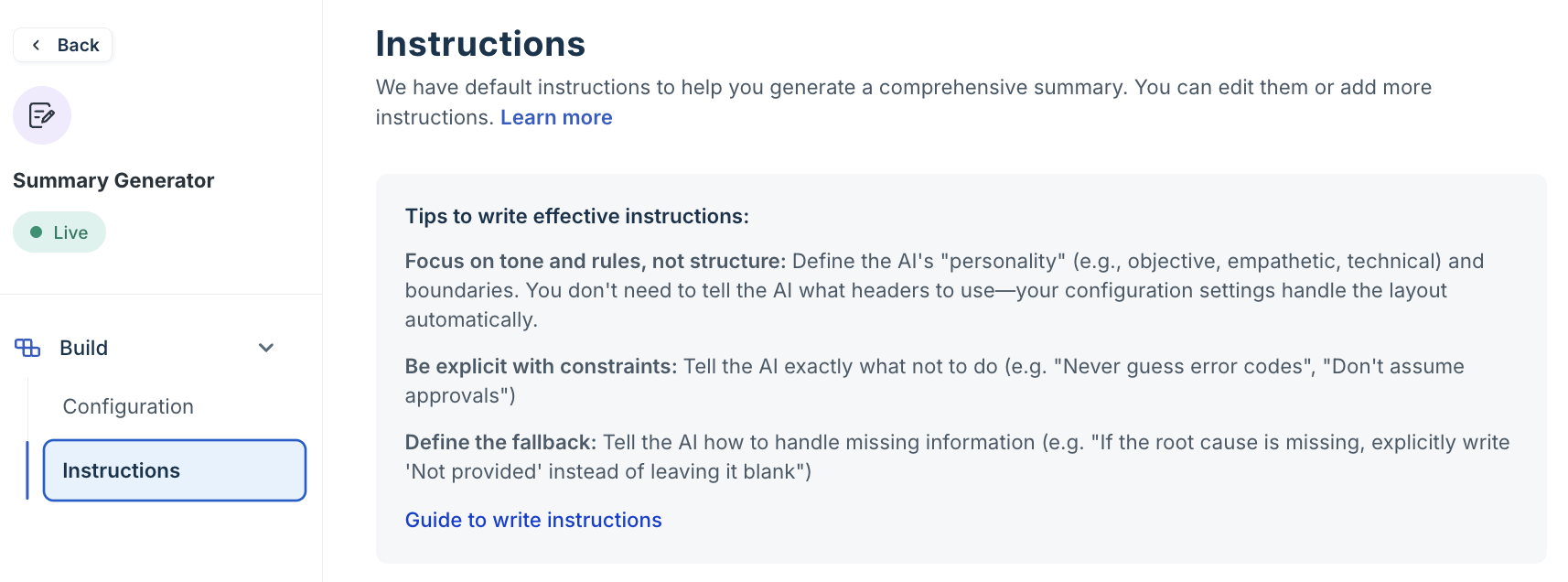
Summary generator provides default instructions and lets you add organization-specific requirements.
- Default instructions: Freshdesk provides baseline guidance through the standard Get started template. These instructions define the general output behavior. Edit them when you need significant changes to how Freddy AI generates or structures summaries.
- Additional instructions: Add company-specific requirements, such as the information to prioritize, terminology to use, and rules for handling missing details.
Add or edit instructions
- Go to AI Agent Studio > AI Copilot.
- Select Customize next to Summary generator.
- In the left pane, under Build, select Instructions.
- Review Default instructions. To make significant changes to the baseline behavior, select Edit instructions.
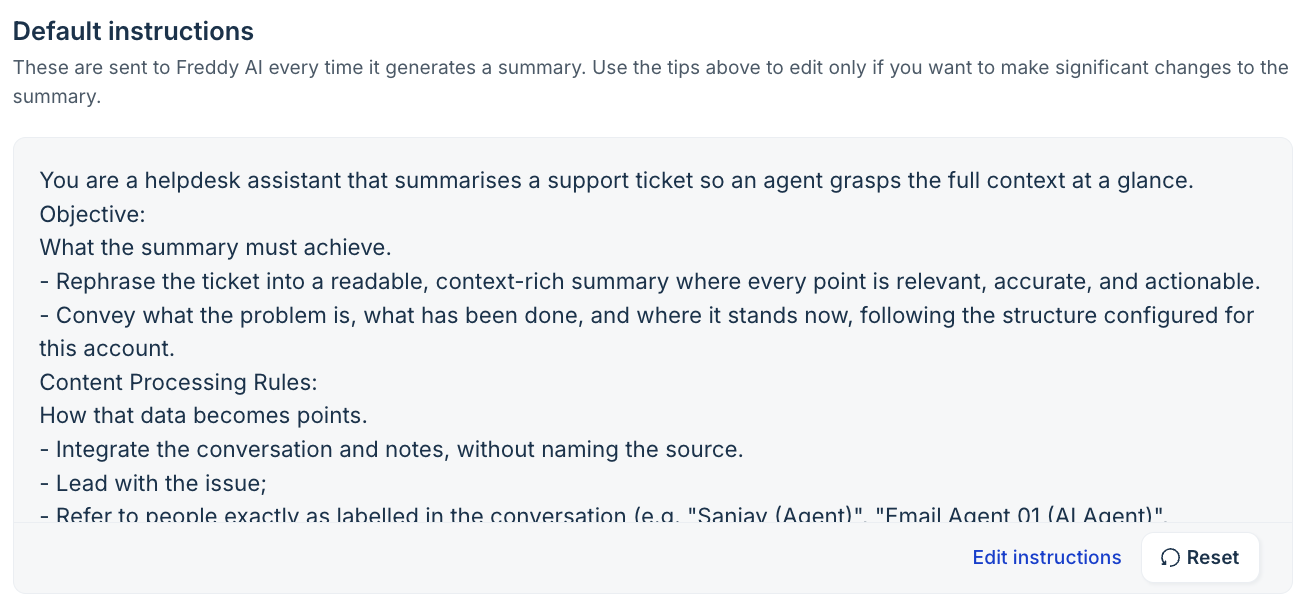
- If required, select Reset to restore the original default instructions.
- Under Additional instructions, enter your organization-specific requirements.
- (Optional) Select Insert Placeholders to reference ticket data, such as Source.
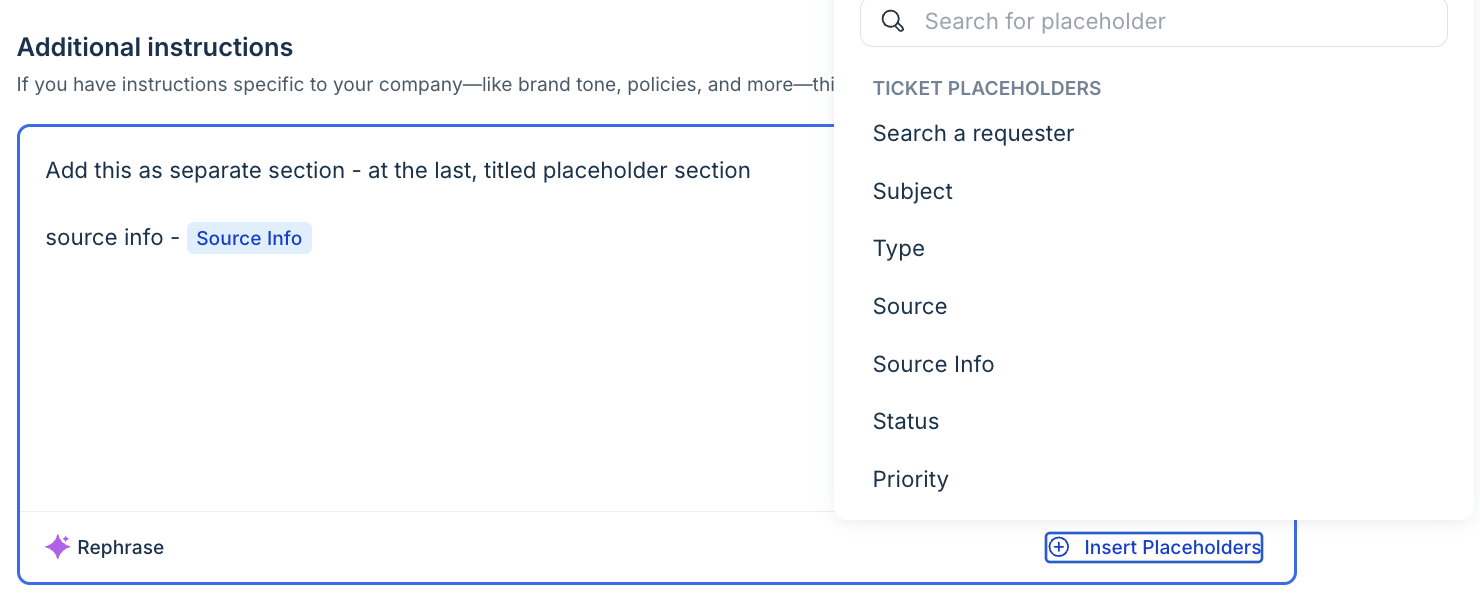
- Save or publish your changes.
The following example shows additional instructions for summaries:
| Tone: Highly technical and brief. Strip out all customer pleasantries. Focus: Highlight only the technical symptoms and what troubleshooting has already been tried. Extraction: Always extract any error codes verbatim. Flags: Explicitly flag if the customer is a VIP. Conditional rules: If the issue is related to network access, explicitly state whether the customer is on a Mac or PC. |
The tips panel on the Instructions page summarizes what makes instructions effective: focus on tone and rules rather than structure, be explicit about constraints, such as "Never guess error codes", and define a fallback, such as writing "Not provided" when the root cause is missing.
For more guidance, see Optimize AI Copilot output with effective instructions.
Preview a summary before publishing
Preview your configuration and instructions against a ticket before making the changes available to agents.
To preview a summary,
- Open the Summary generator settings in AI Agent Studio > AI Copilot.
- In the left pane, select Preview.
- Search for a ticket by subject or ticket ID, then select it.
- Review the summary generated using the current configuration and instructions.
- If the comparison option is available, use it to compare the draft output with the live version.
The Draft version uses the configuration and instructions you are currently testing. The Live version uses the previously published configuration and instructions.
When you are satisfied with the changes, save them as a draft or publish them to make them live.
Generate a ticket summary
Agents can generate a summary when they need a quick overview of a ticket.
To generate a summary,
- Open the ticket on the ticket details page.
- Select Add AI Summary.
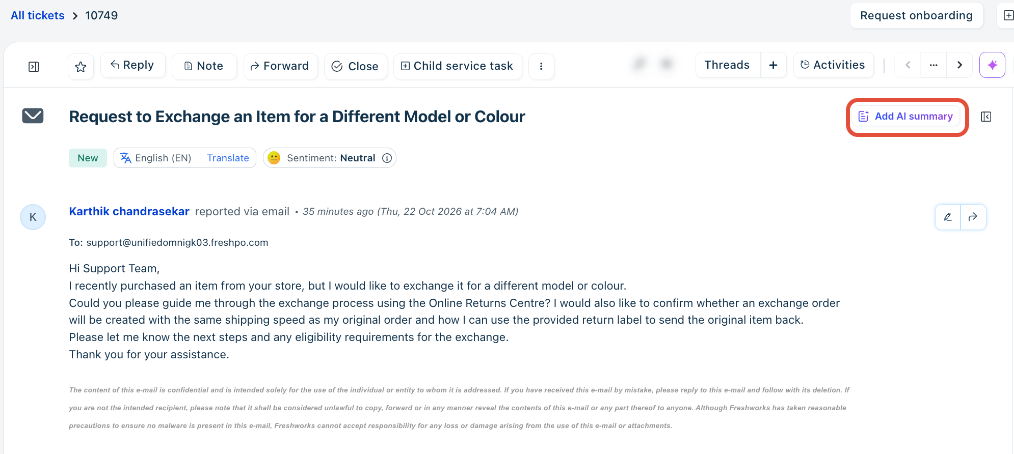
- Review the generated summary.
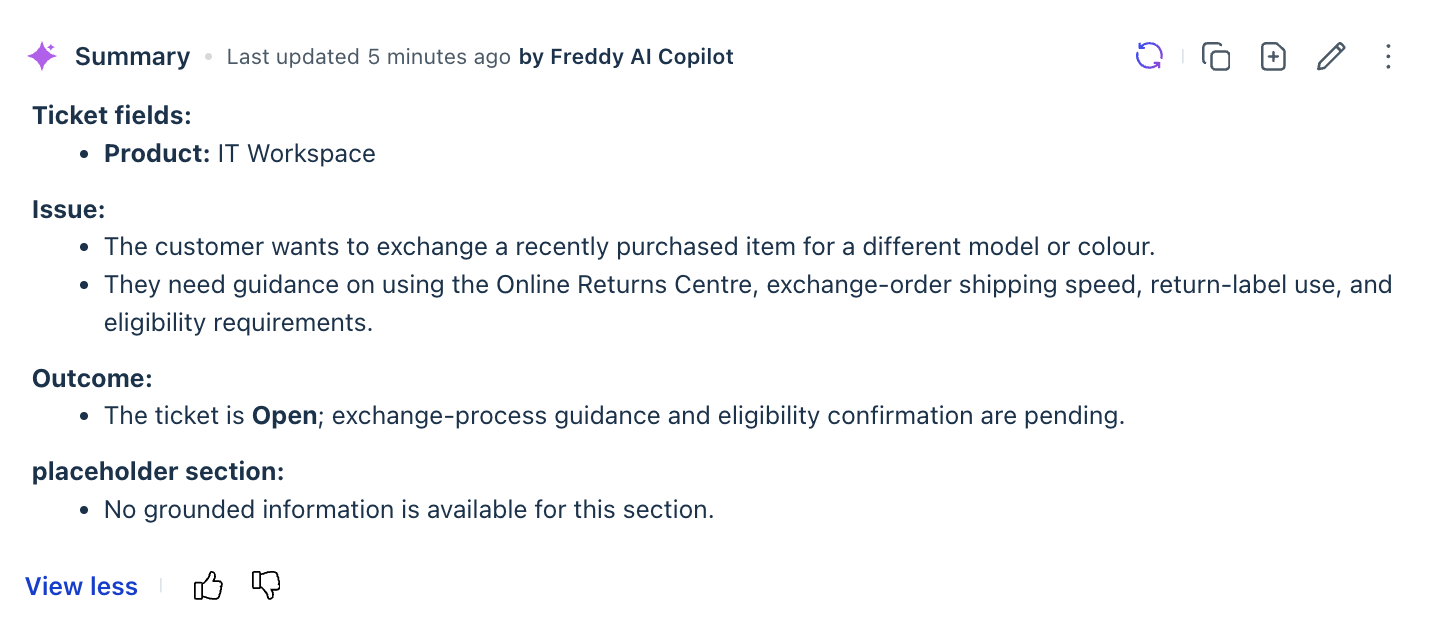
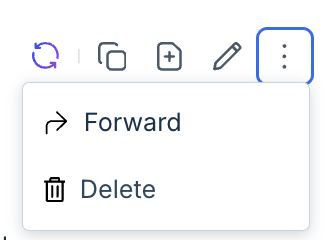
- Regenerate, copy, add the summary as a note, edit, or forward it to an email, the summary if required using the options available.
The summary follows the content, data sources, and instructions configured by the administrator.
Manage a ticket summary
You can manage a generated summary using the available actions in the ticket interface. Depending on the interface, you can edit, regenerate, copy, forward, add the summary as a note, or delete it.
Action | What it does |
Edit | Enables you to make changes to an existing summary. |
Regenerate | Generates a new summary using the latest available ticket information, replacing the existing summary. |
| Copy | Copies the summary to your clipboard. |
| Forward | Opens an email forwarding window so you can send the summary to other email addresses. |
| Add as note | Adds the current version of the summary as a note on the ticket. This preserves the summary before automatic regeneration replaces it with an updated version. |
Delete | Removes the summary from the ticket. |
To edit a summary, select the edit button, update the text, and select Update.
To regenerate a summary, select the edit button and then Generate summary.
To delete a summary, select the delete button.
Use summaries in ticket workflows
Agents can use summaries to share ticket context with others. Depending on the available ticket actions, they may be able to:
- Add a private note: Include a summary for internal reference.
- Forward a ticket: Share a summary when forwarding a ticket to another team.
- Link related tickets: Use the summary to provide context for related issues.
- Export a ticket: Include the summary in ticket export data.
Things to keep in mind
- Profile language: Summary generator delivers summaries in the agent's profile language.
- Child tickets: You cannot generate a summary directly on a child ticket. When Child tickets is enabled, a parent ticket's summary can include context from its child tickets.
- Deleted agents: Summaries created by deleted agents cannot be edited.
- Permissions: Summaries may include information from enabled data sources that an agent cannot access directly.
- Field limit: You can select up to 5 ticket fields as data sources.
- Published changes: Agents receive configuration and instruction changes only after you publish them.
- Automatic updates: The Freshdesk source draft does not establish whether Summary generator supports automatic generation after a set number of messages or when a ticket closes. Verify these capabilities before documenting them.
The availability of optional functionality is subject to feature-specific terms and conditions in theFreshworks Supplemental Terms.