
 Community
 Video Library
 Agent Training
 Freshservice
 Freshdesk
 Freshchat
 Freshcaller
 Freshsales
 Freshteam
 Freshworks Neo
 Freshsurvey
 Sprout
 Forest
- About Skill-based ticket assignment
- Examples of skill-based ticket assignment
- Configure skill rules
- Enable skill-based ticket assignment
- Manage Skillb
- FAQs
About Skill-based ticket assignment
Skill-based ticket assignment helps you automatically prioritize and route tickets to the most qualified agents based on their skills. For details on other assignment methods, see About Advanced Automatic Routing.
Key benefits:
- Ensures faster resolutions
- Prioritize certain types of issues over others for assignment.
- Ensure balanced workload across your team
- Deliver accurate customer support without unnecessary delays
For example, if an agent specializes in handling VIP customer issues, any new ticket matching the VIP skill rule will be automatically routed to them.
User requirements: Ensure that you have admin access to enable skill-based ticket assignment.
Before you begin:
Before setting up skill-based ticket assignment, ensure you have configured the following:
- Configure Omniroute settings
All automatic ticket routing methods are powered by Omniroute, so ensure you have configured Omniroute. With Omniroute, you can:- Control who can manage agent availability
- Control agent ticket load capacity
- Choose assignment preference order
- Check SLA impact
Only tickets with an active SLA timer count towards an agent’s workload and are picked for automatic routing.
Tip: You can decide which statuses should be excluded from counting toward an agent’s ticket capacity, even when the SLA timer is active in Assignment Preferences. - Create and map skills to agents
Since skill-based routing is based on agent skills, ensure that you create relevant skills and associate them with the most qualified agents.
How does skill-based ticket assignment work?
Here’s how tickets are assigned using skill-based ticket assignment:
- Identifies agent availability
Checks for the agents available in the group to receive tickets. - Computes the current agent load
Checks for the number of SLA-ON tickets assigned to each available agent. If an agent is already at maximum ticket capacity, they will be skipped from ticket assignment.
Note: As an admin, you can choose which statuses to exclude from counting toward an agent’s ticket capacity, even when the SLA timer is active in Assignment Preferences. However, this feature is not available for customers who signed up before December 1, 2025. - Checks ticket assignment preference
If multiple tickets are waiting for assignment, the assignment preference order will be checked to determine which ticket to assign. - Automatically assigns tickets based on agent skills
Identifies the agent that best aligns with the ticket's issue type and assigns the ticket to them.
Examples of skill-based ticket assignment
An e-commerce support team has two agents:
Marley’s expertise
Primary skill: Damaged product
Secondary skill: Order tracking
Dan’s expertise
Primary Skill: Order tracking
Secondary skill: Damaged product
At the start of the day, both agents have no tickets. When the first ticket with the skill Order tracking arrives, it is assigned to Dan, since that’s his primary skill. A ticket with the skill Damaged product will go to Marley. This continues until both Marley and Dan reach their load limit.
Consider the following tickets, waiting to be assigned
Created time | 8:00 AM | 9:00 AM | 10:00 AM | 11:00 AM |
Ticket A | Ticket B | Ticket C | Ticket D | |
Skill | Damaged product | Order tracking | Damaged product | Order tracking |
If Dan resolves two tickets and still has the capacity to handle more, Ticket B will be assigned first since “Order Tracking” is his first skill, followed by Ticket D. Only when there are no more "Order tracking" tickets, "Damaged product" tickets will be assigned to Dan.
Configure skill rules
What are skill rules?
Skill rules allow you to define conditions and associate them with agents based on specific criteria. For example, you can create a skill rule that routes French-speaking customer inquiries to French-proficient agents.
What are agent skills?
You can associate each agent in your team with multiple skills and prioritize them based on their expertise. When a new ticket is received, it is routed to the agent with the first matching skill. For example, if a ticket matches the “French” skill rule, it is assigned to the agent with “the French” skill.
Note: You can create up to 180 skills.
Skill rule configuration involves the following steps:
- Create skill
- Add agents to skills
Create skill
To create a skill:
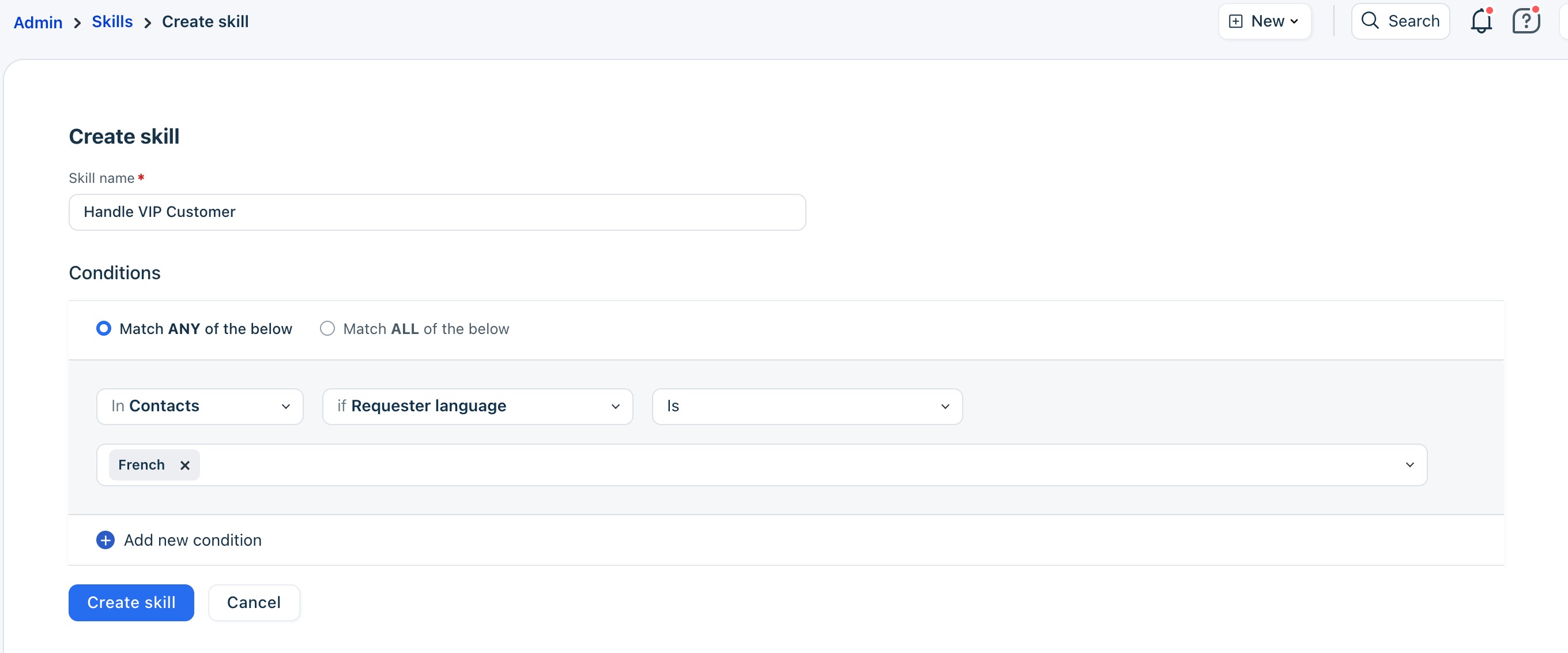
- Log in as an Admin and go to Admin > Skills > Create Skill.
- Enter a Skill name.
- Add conditions that determine when the skill should be applied.
For example, create a condition to assign every ticket from a French-speaking customer (the requester's language is French) to the skill "French". - Choose whether all or any conditions must match.
You can add multiple conditions based on ticket/contact/company fields. - Click Create skill.
 Now, proceed to the next step to associate agents with the skills.
Add agents to skills
You can assign multiple skills to agents. This can be done in the following ways:
- Add agent skills while creating/updating skills
- Add agent skills from the agent’s profile
Add agent skills while creating/updating a skill
- Go to Admin > Team > Skills.
- Add conditions and click Create Skills.
- In the Add agents box, select the agents or enter or copy/paste the agents’ email addresses.
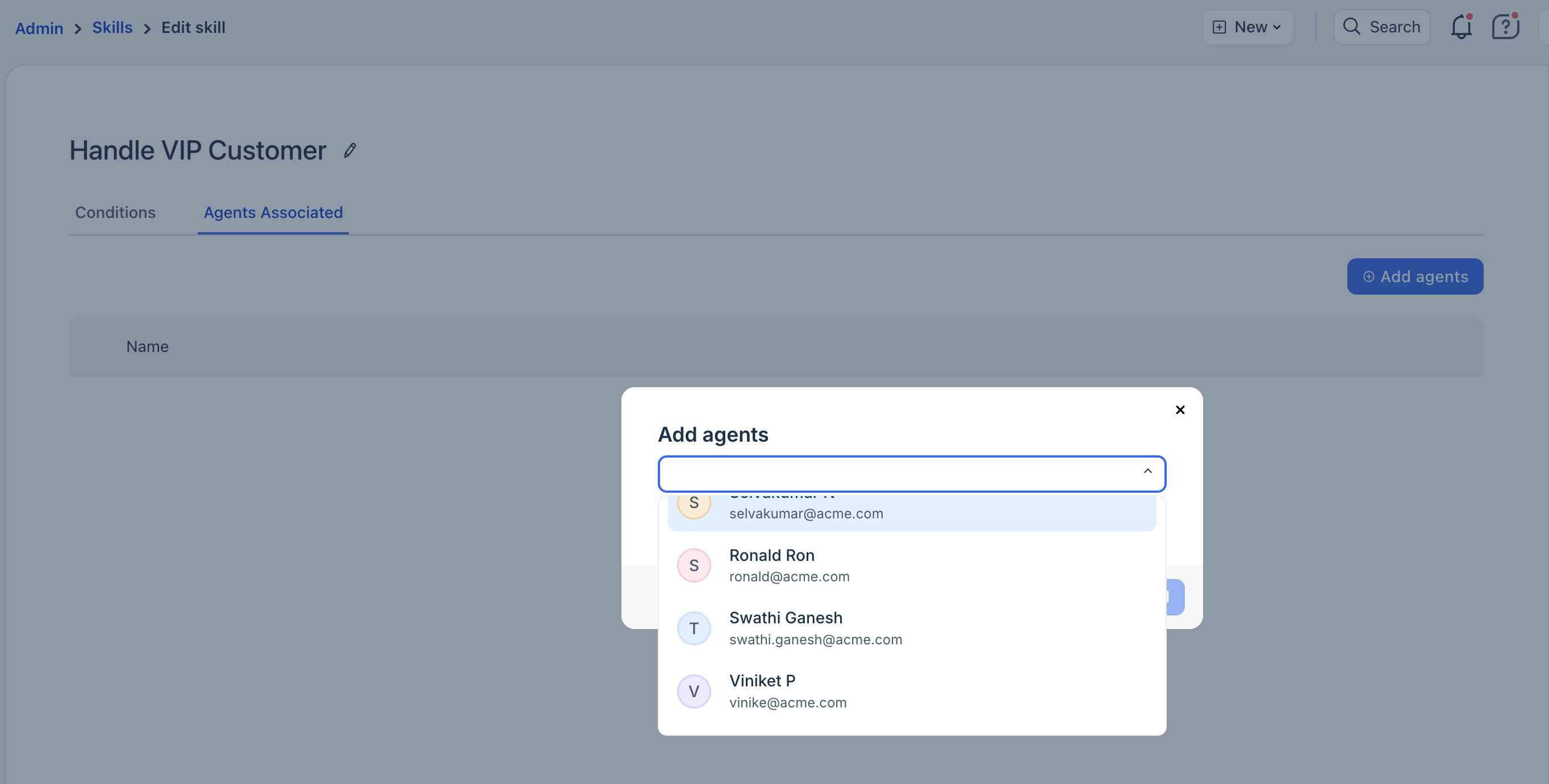
- Click Add to skill.
Add agent’s skills from the agent’s profile
- Go to Admin > Team > Agents.
- Click on the Edit icon next to an existing agent.
- Scroll down to the Skills section and click Add Skills/Manage Skills.
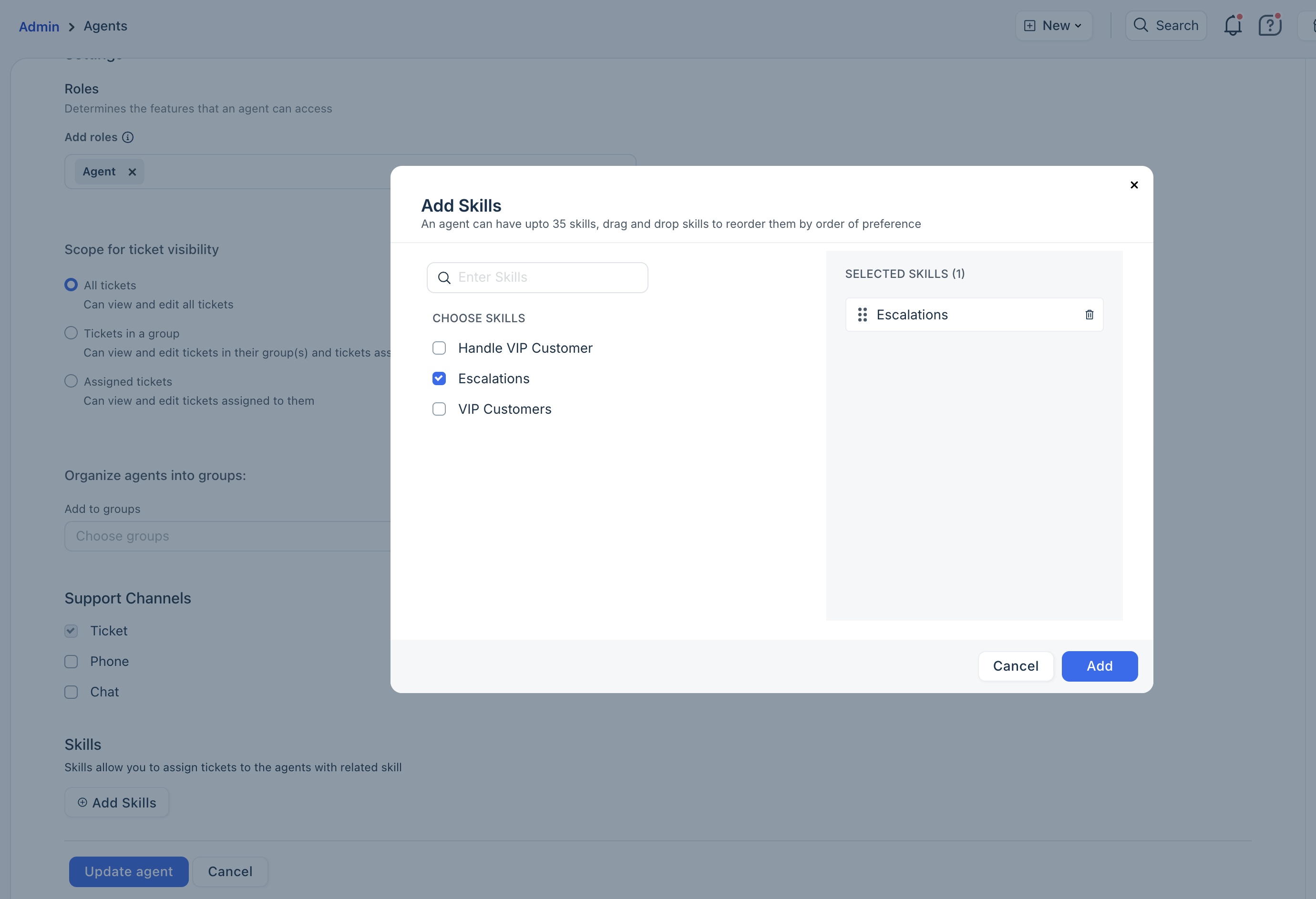
- Select the skills to associate with the agent, and reorder them as needed.
- Click Add.
Enable skill-based ticket assignment
Once you have added Skills and mapped agents, you can enable Skill-based routing to automatically asssign tickets to agents based on their skills.
To enable skill-based ticket assignment method:
- Log in to your account as admin.
- Go to Admin > Groups.
- Click on the edit icon next to the group.
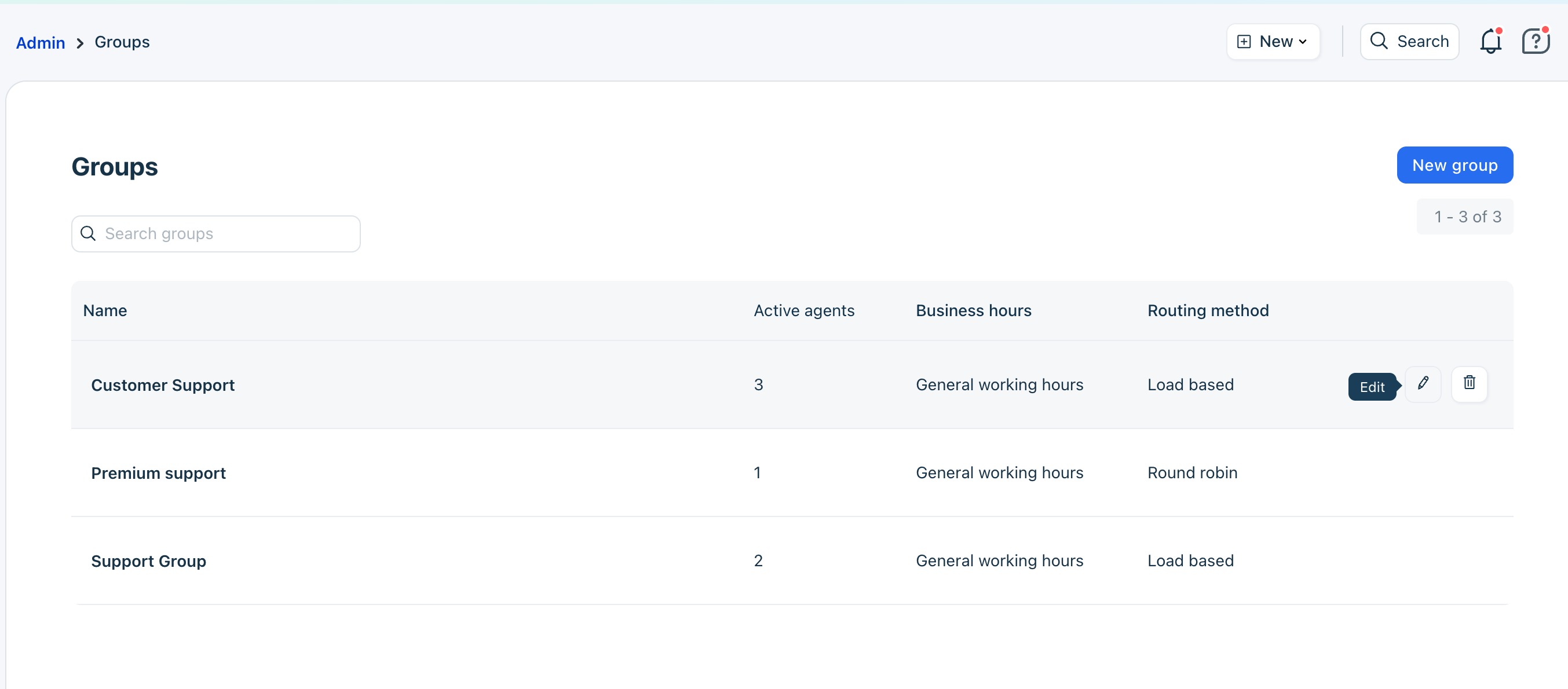
- Switch to the Group Properties tab.
- Under Advanced Automatic Routing, select Skill-based.
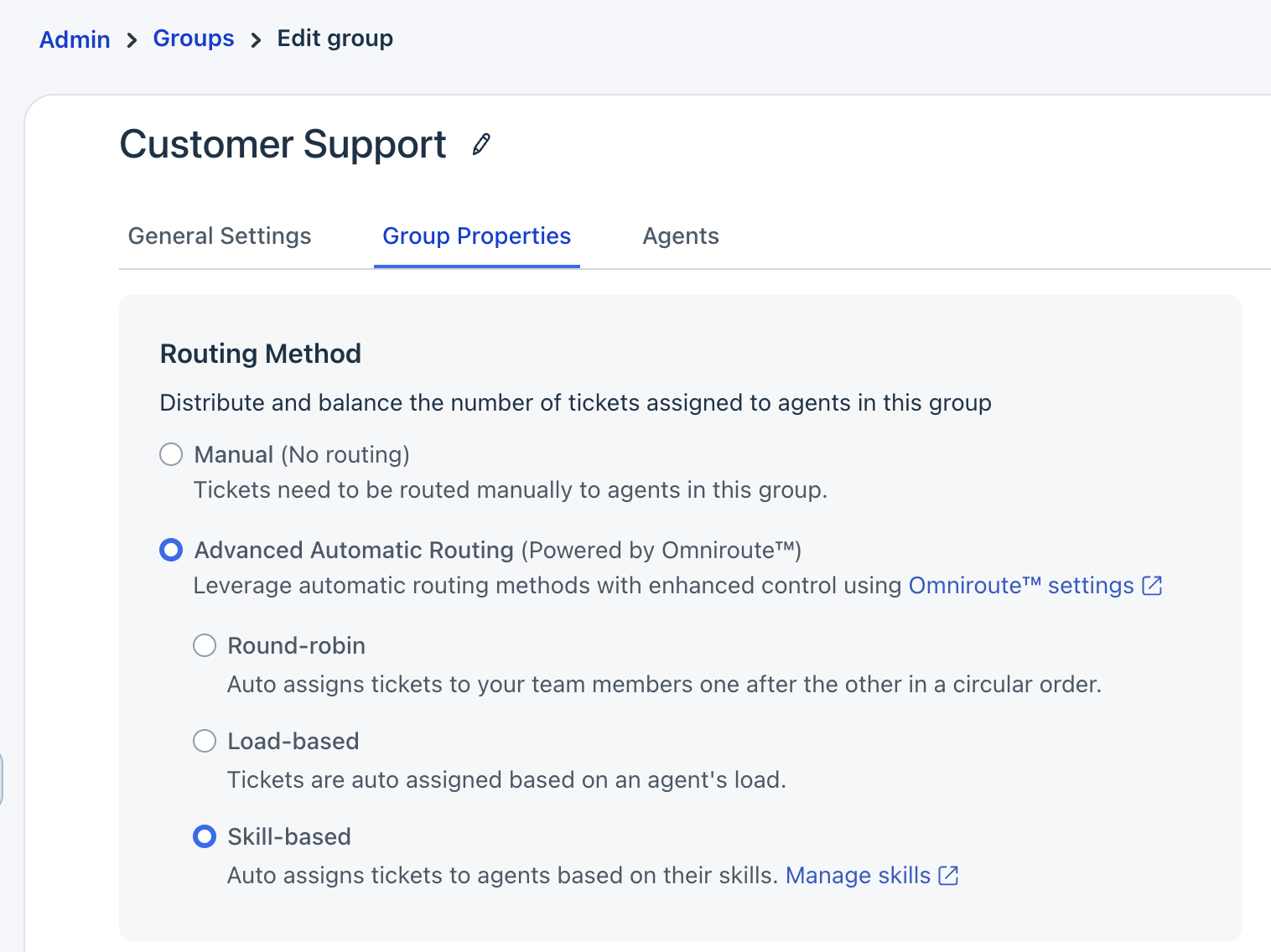
- Click Save.
Tip: Click the Omniroute settings link to configure Omniroute, if you haven't already. Also, ensure that you have added teh the relevant Skills.
Note: If you signed up before December 1, 2025, you will find the Skill-based routing option under Automatic Routing.
Manage Skills
The Skills page provides a quick glance at all the skills and associated agents in your account. You can reorder, edit, or delete skills. Additionally, you can manage associated agents by assigning additional skills or adjusting their individual skill preferences.
Note: You can reorder the skill set at the account level. Furthermore, you can also modify the skill preference order for individual agents.
Reorder skill set
Skill-based routing assigns tickets to agents based on the first matching skill rule set. Hence, the order of skills is important.
- Go to Skills > Skill List.
- Click Reorder.
- Hover the preferred skill and click Select.
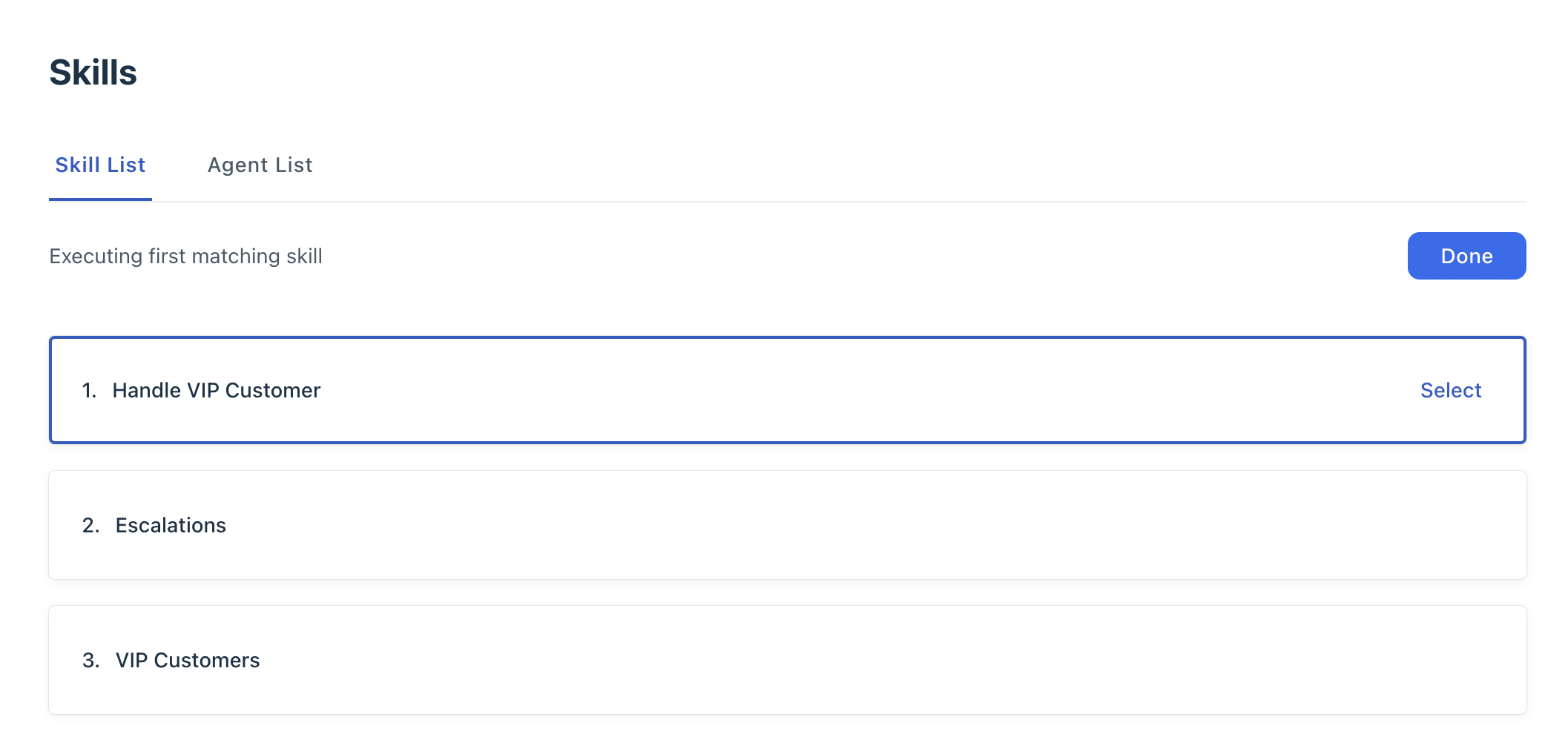
- Choose the preferred position, and then click Place here.
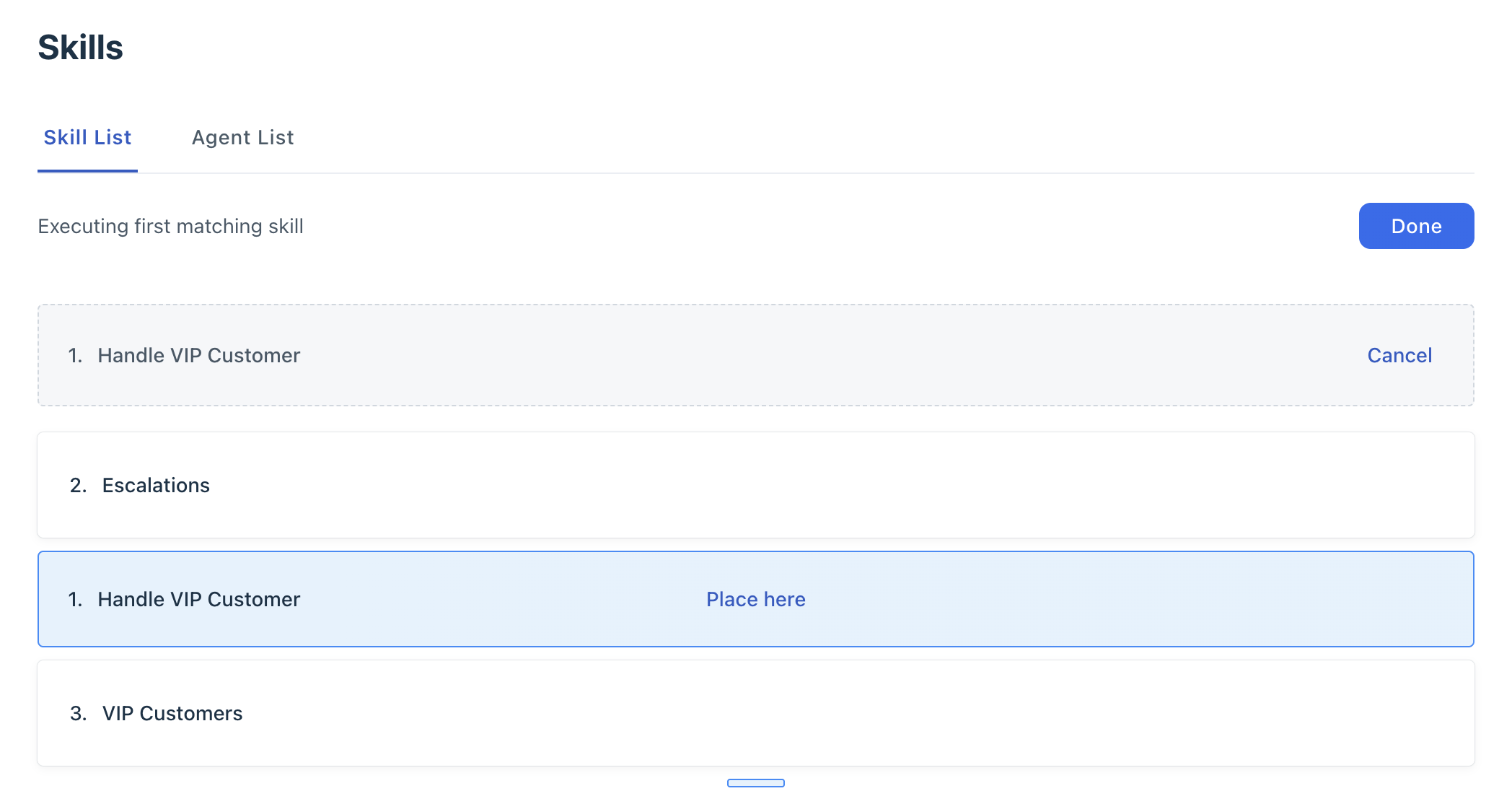
- Click Done.
Note: If a ticket does not match any skills, it remains unassigned until it is manually assigned to any agent. To avoid this, create a fallback skill with the group name as the condition and map this skill as the last skill to all your agents.
Delete a skill
- On the Skills page, under the Skill list, click on the three dots next to the skill name.
- Select Delete.
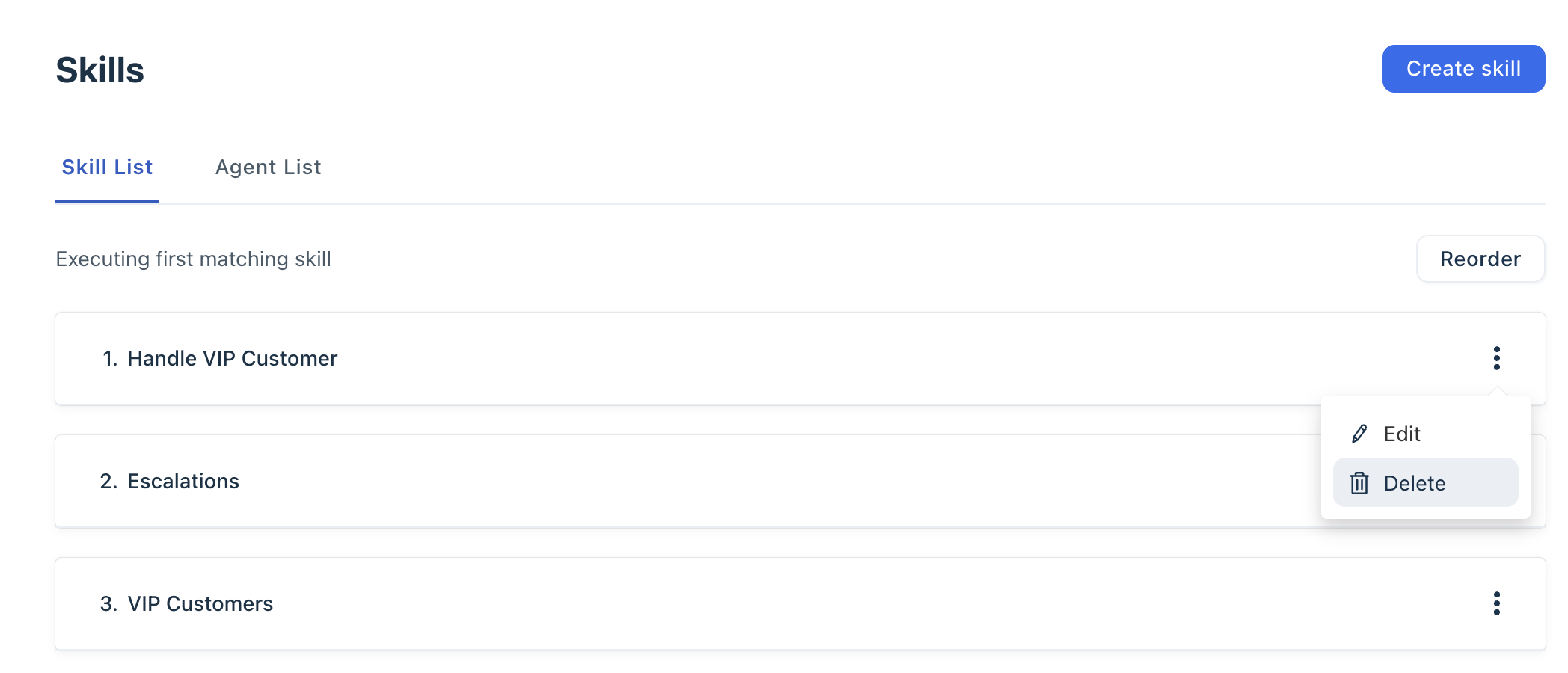
- Confirm the elete action.
Note: Deleting a skill removes it from all the agents. Unassigned tickets with this skill will be mapped to another skill.
Manage agent list
- On the Skills page, switch to the Agent List tab. You can filter and view the agents by groups or use the search box to find them.
- To add skills to an agent, hover over the agent's name and click Manage.
- In the Manage Skills box, select the skills.
- To reorder the agent’s skill preference, drag and drop the skills to the preferred position.
- To remove a skill from agents, click the delete icon or uncheck the skill.
FAQs
- What happens when the properties of a skilled rule are updated?
The skill rule is considered only for new or existing chats that are up for skill recalculation (open, SBRR group, unassigned, not spam/deleted). Existing tickets/chats remain unaffected. - Can a manager have access only to update skills for agents in their own team?
- If you use Freshdesk or Freshdesk Omnichannel Classic, then yes. If an agent's role is a supervisor and they have group access, they can only see agents that are a part of their group under Admin > Skills.
- If you are using Freshchat, then no. All groups and agents from Freshchat will be displayed under the agent list page.
- What happens when an admin changes the skill of a ticket?
- If the ticket is unassigned and the skill is changed, the router will look for an agent with the updated skill.
- If the ticket is assigned, the skill change doesn't change the agent that owns the ticket, as the existing agent will have all the context of that ticket. Once the ticket is unassigned, a new skill is added based on the skill conditions.
- What happens when the load of the agent is increased?
- If an admin increases the capacity of agents globally or at a group level, the router assigns the unassigned tickets to agents. The router picks the tickets based on created time (even if the Omniroute settings are based on resolution time or resolved time).
- The oldest tickets will be assigned to agents with matching skills. Based on the agent's availability, it could be assigned to agents who have the first or the 35th skill as the skill of the ticket.
- The router looks for an agent for assignment when agents are added to a group in bulk, skills are added in bulk to agents, or when skill-based routing is enabled for a group
- This means that if a support team has set up skills to ensure, for example, that queries about damaged goods are always prioritized over shipment tracking tickets for a set of agents, it will fail when the global capacity is increased until the agents reach the new maximum capacity.
- What happens when an agent under skill-based routing becomes inactive?
When an agent becomes inactive, all chats that have a response from the customer will be unassigned. This will happen regardless of whether there's another agent available to handle the chat. A note will be displayed in the conversation that says, 'Chat unassigned by Intelliassign.' Once assigned to the right agent, another note will be displayed as 'Assigned to <agent name> by Intelliassign.'
What happens to the existing chats/tickets when skill-based routing is enabled? Nothing. Skill is not calculated for existing chats in routing-enabled groups. When an existing chat is assigned to a group with routing enabled (after skills routing is enabled) skill is calculated.
How do you set a load for chats? The current load levels are used to set the chat load for an agent. If an agent is a part of multiple load levels, the highest load they're assigned is taken into account.