
 Community
 Video Library
 Agent Training
 Freshservice
 Freshdesk
 Freshchat
 Freshcaller
 Freshsales
 Freshteam
 Freshworks Neo
 Freshsurvey
This article applies to Freshdesk Omnichannel classic or Freshdesk Omni 2023 (formerly Customer Service Suite) customers who want to upgrade to the latest Freshdesk Omni experience.
Before you upgrade, please check if the following configurations are complete for a smooth upgrade process:
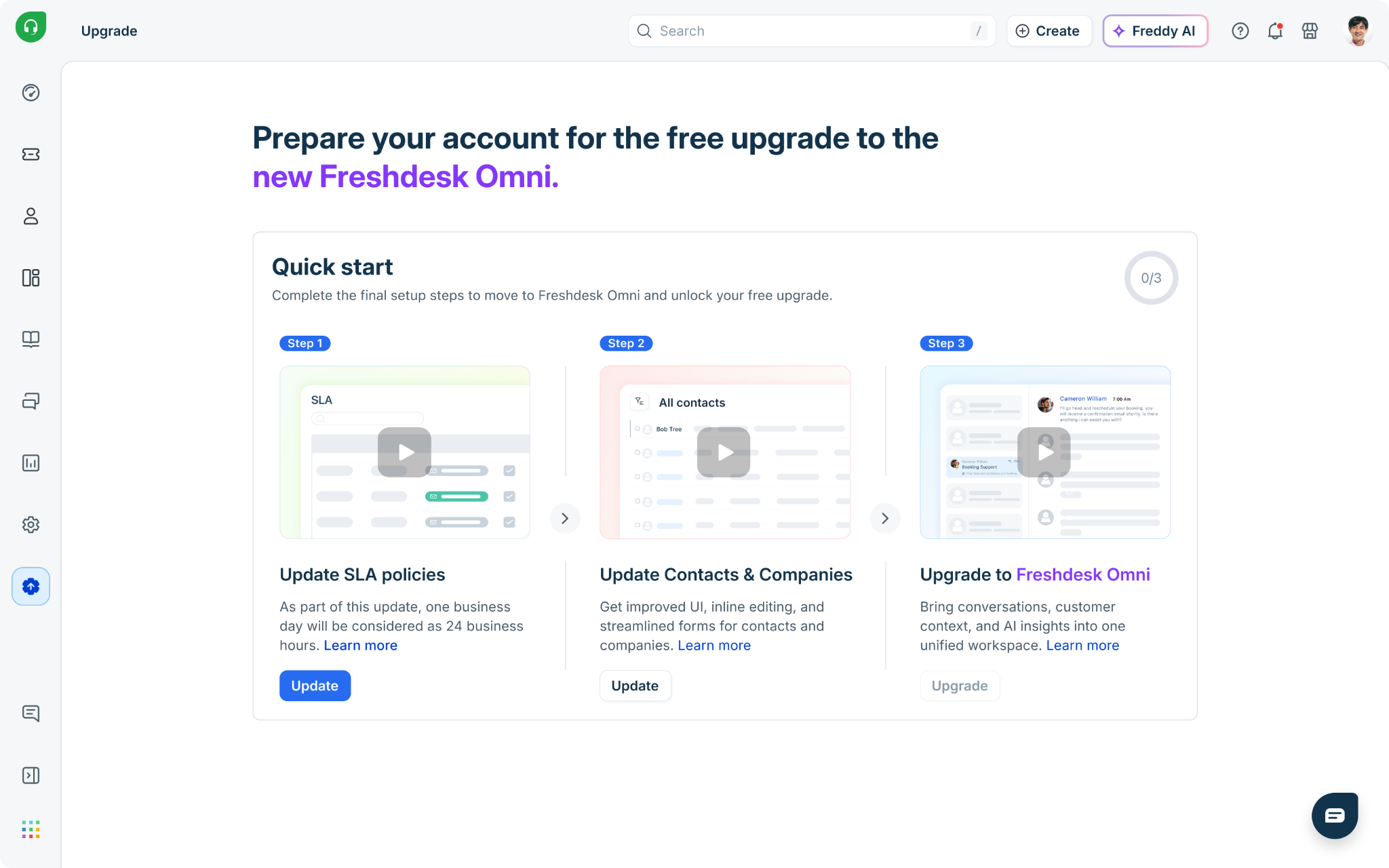
- Update SLA policies
As part of this update, one business day will be considered as 24 business hours.
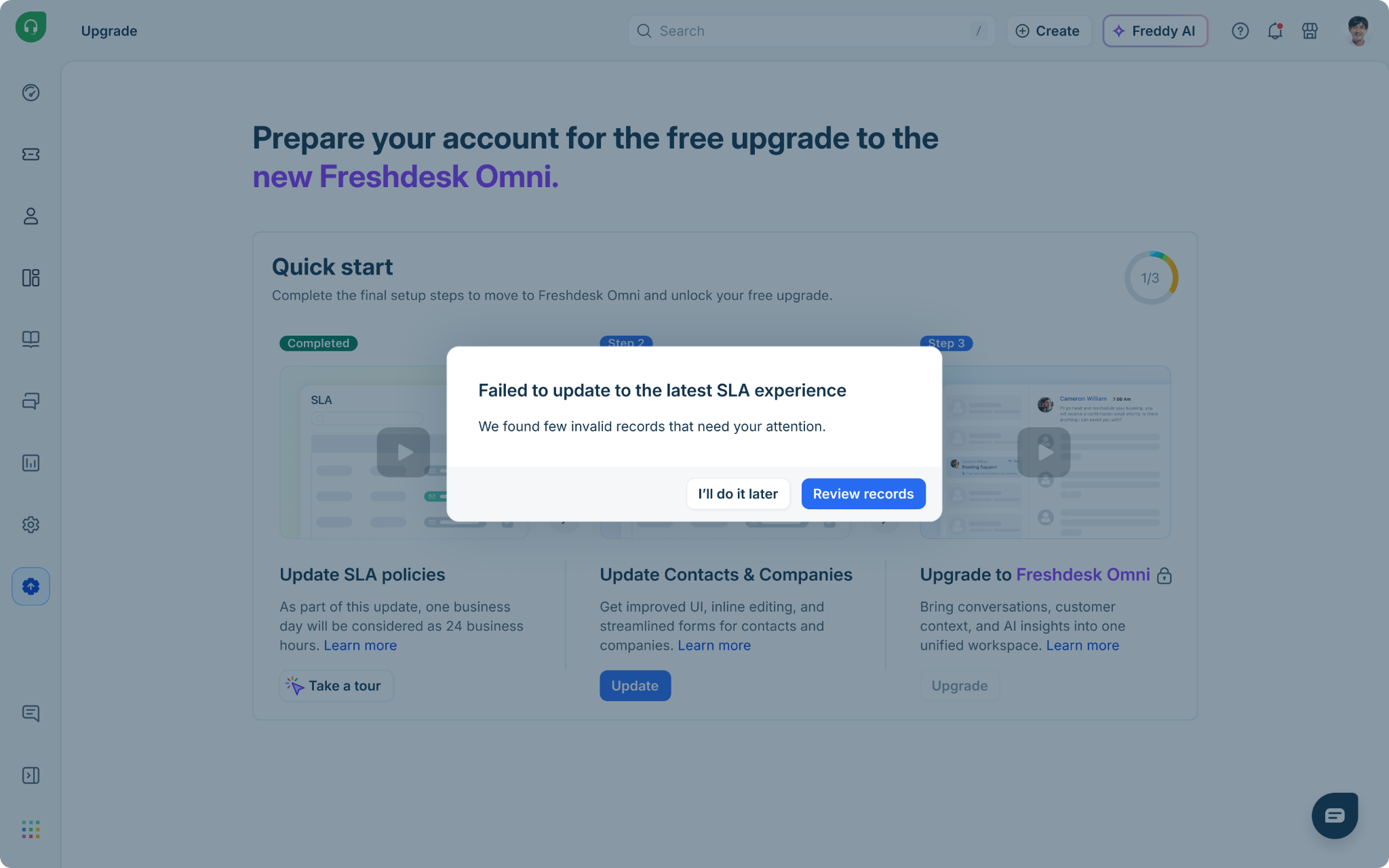
To automatically update your existing policies, in the Quick Start section, under the Update SLA policies tile, click Update. If any policies need to be updated manually, you will be notified. Click Review records to update the policies that require changes. Click here to know more about SLA policies in days.
- Update contacts and companies
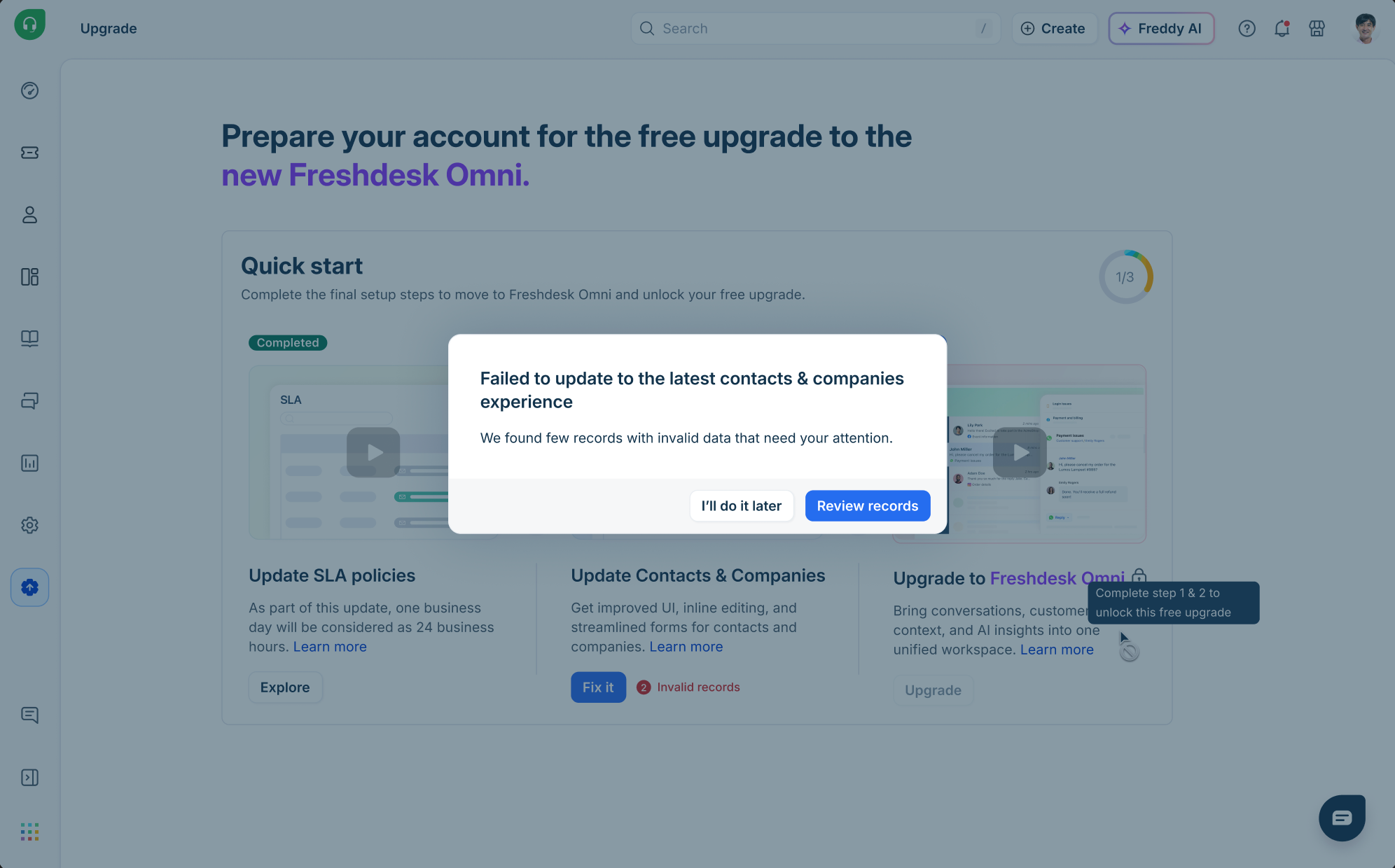
To improve data quality, the latest contacts and companies have stricter phone number validation. Click Update under the Update Contacts and Companies tile to automatically update your contacts.
If there are contacts that still need to be updated, you will receive a pop-up. Click Review records.
Now you will land on the Contacts page, where you will see the view of Contacts that need action.
Here you can:
- Update Contacts Individually: Click each Contact, then update the phone number in the Contacts Slider that opens. Click here to know more.
- Bulk update: Export the Contacts and update them in one go. Click here to know more.