
 Community
 Video Library
 Agent Training
 Freshservice
 Freshdesk
 Freshchat
 Freshcaller
 Freshsales
 Freshteam
 Freshworks Neo
 Freshsurvey
 Free
Free Pro
ProTABLE OF CONTENTS
- Prerequisites
- Overview of the Copilot Agent
- Configure the Copilot Agent
- Explore built-in Copilot features
- Turn built-in features on or off
- Configure a built-in feature
- Things to keep in mind
The Copilot Agent in Freshdesk brings built-in AI Copilot Agent capabilities directly into your agent workflows. This guide covers how to enable, configure, and publish each feature, as well as manage knowledge sources and monitor usage.
Prerequisites
Before you manage the Copilot Agent:
- Ensure you have administrator access to AI Agent Studio.
- Ensure your agents have Freddy AI Copilot licenses assigned.
Overview of the Copilot Agent
The Copilot Agent works alongside human agents to help them resolve tickets. It can suggest replies, summarize ticket conversations, and find relevant solution articles and previously resolved tickets.
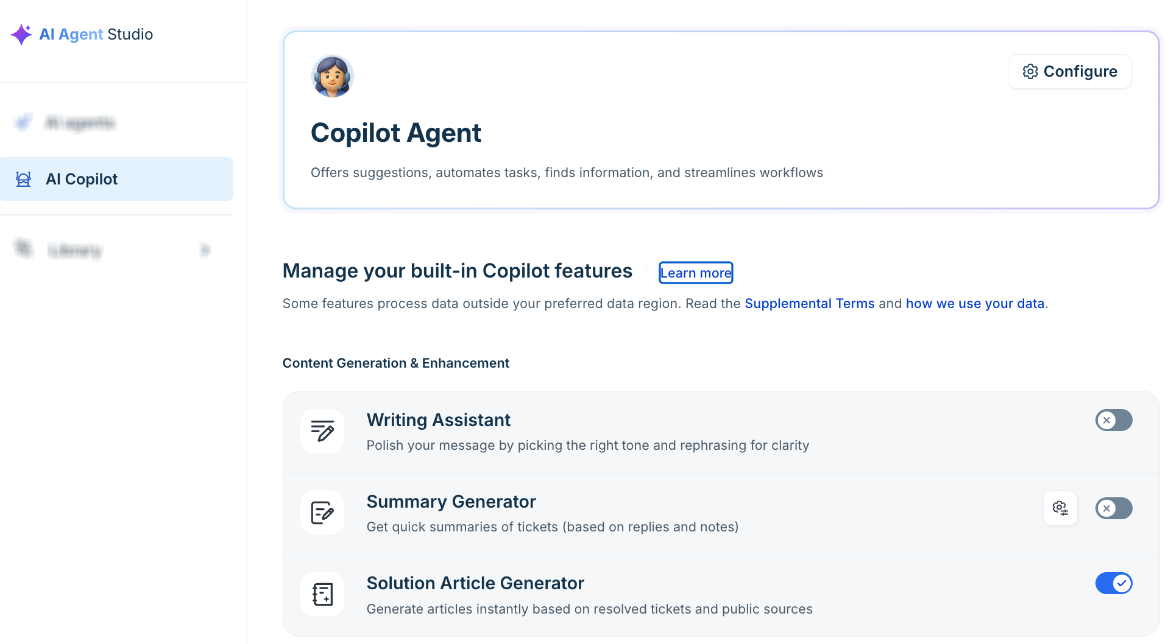
To manage the Copilot Agent, go to AI Agent Studio > AI Copilot. This page has two main sections,
- Copilot Agent Card: Select Configure to open settings or Connect now to add knowledge sources like files, URLs, and third-party applications like SharePoint, Google Drive, and Confluence.
- Manage Your Copilot's Built-in Features: View features by category, toggle them on or off, access related documentation via Learn more, and select Customize to configure supported features.
Configure the Copilot Agent
Select Configure on the Copilot Agent card to open its settings. The left pane lists settings under Build.
The Knowledge Sources tab lets you configure URLs, files, and apps that the Copilot Agent uses alongside your solution articles. Connected apps include SharePoint, Google Drive, and Confluence.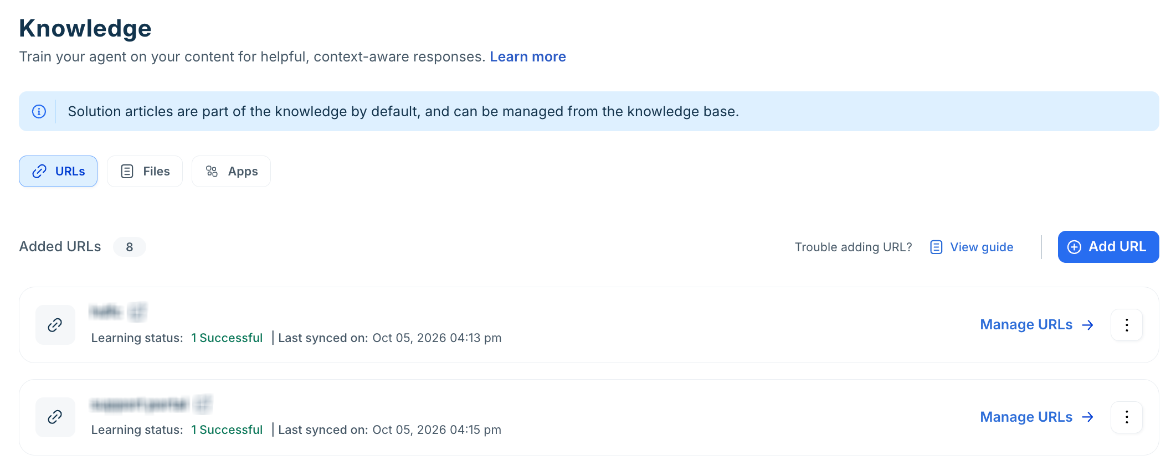
For setup instructions, see Connect knowledge sources to your Copilot Agent.
Explore built-in Copilot features
Freshdesk groups the built-in AI Copilot features into three categories. 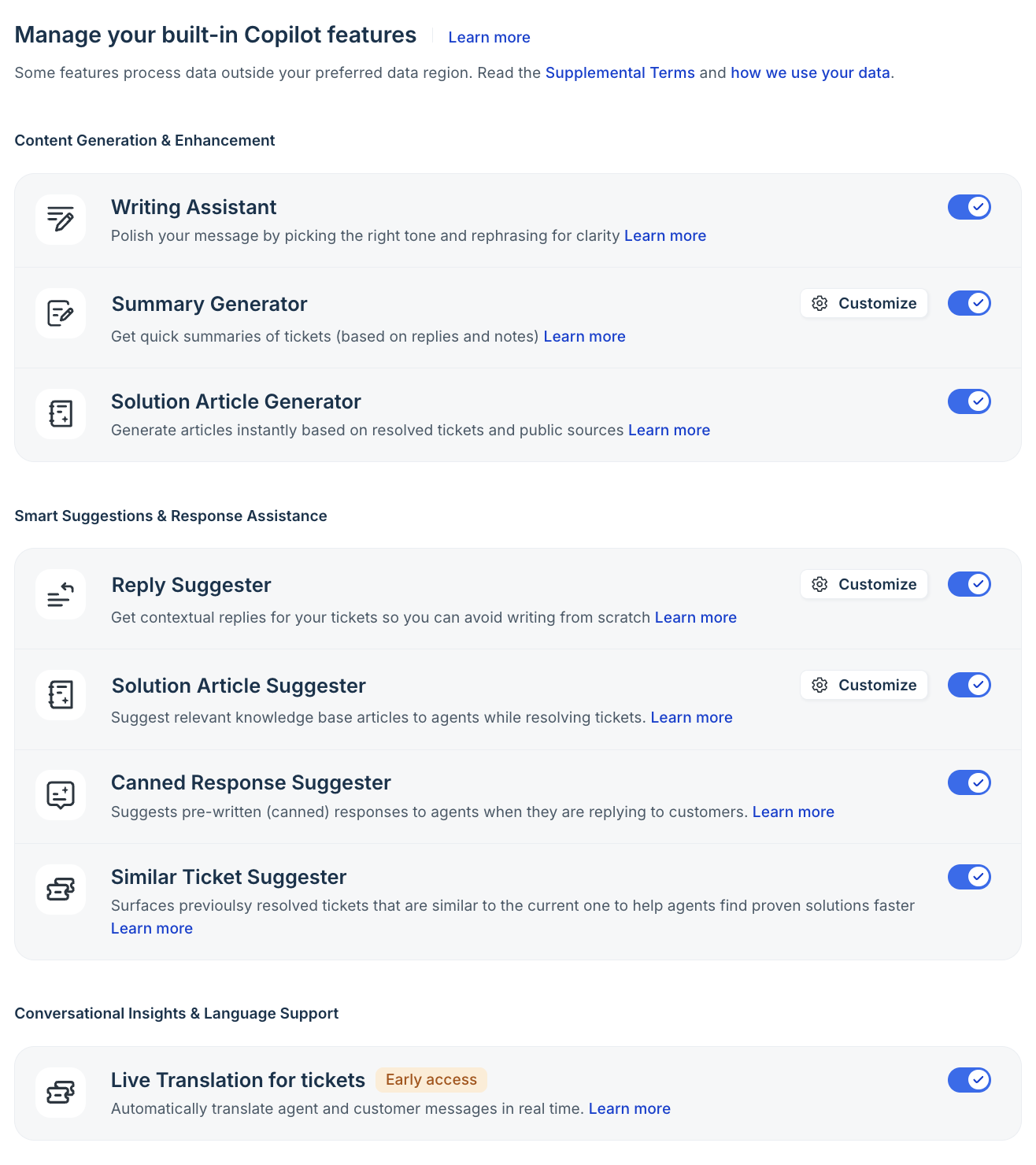
Use the following table to find a feature and learn what it does.
Category | Feature | Description |
|---|---|---|
Content generation and enhancement | Writing assistant helps agents expand, rephrase, and enhance the tone of their responses. | |
Summary generator summarizes long ticket threads for internal collaboration. | ||
Solution article generator helps agents create FAQs and solution articles from ticket content. | ||
Smart suggestions and response assistance | Reply suggester suggests a response for incoming tickets based on the ticket context and the knowledge sources configured for it. | |
Solution article suggester recommends relevant knowledge base articles based on the context of the ticket. | ||
Similar Ticket Suggester surfaces previously resolved tickets that are similar to the current ticket. | ||
Canned response suggester suggests canned responses to agents when they reply to customers. | ||
| Auto triage | Auto triage recommends values for ticket fields such as priority, assigned group, and status. | |
Conversational insights and language support | Sentiment analysis feature analyzes customer sentiment across conversations in real time so agents can adjust their approach. | |
| Live Translate | Live Translation automatically detects and translates ticket conversations in real time, ensuring language is never a barrier to great support. |
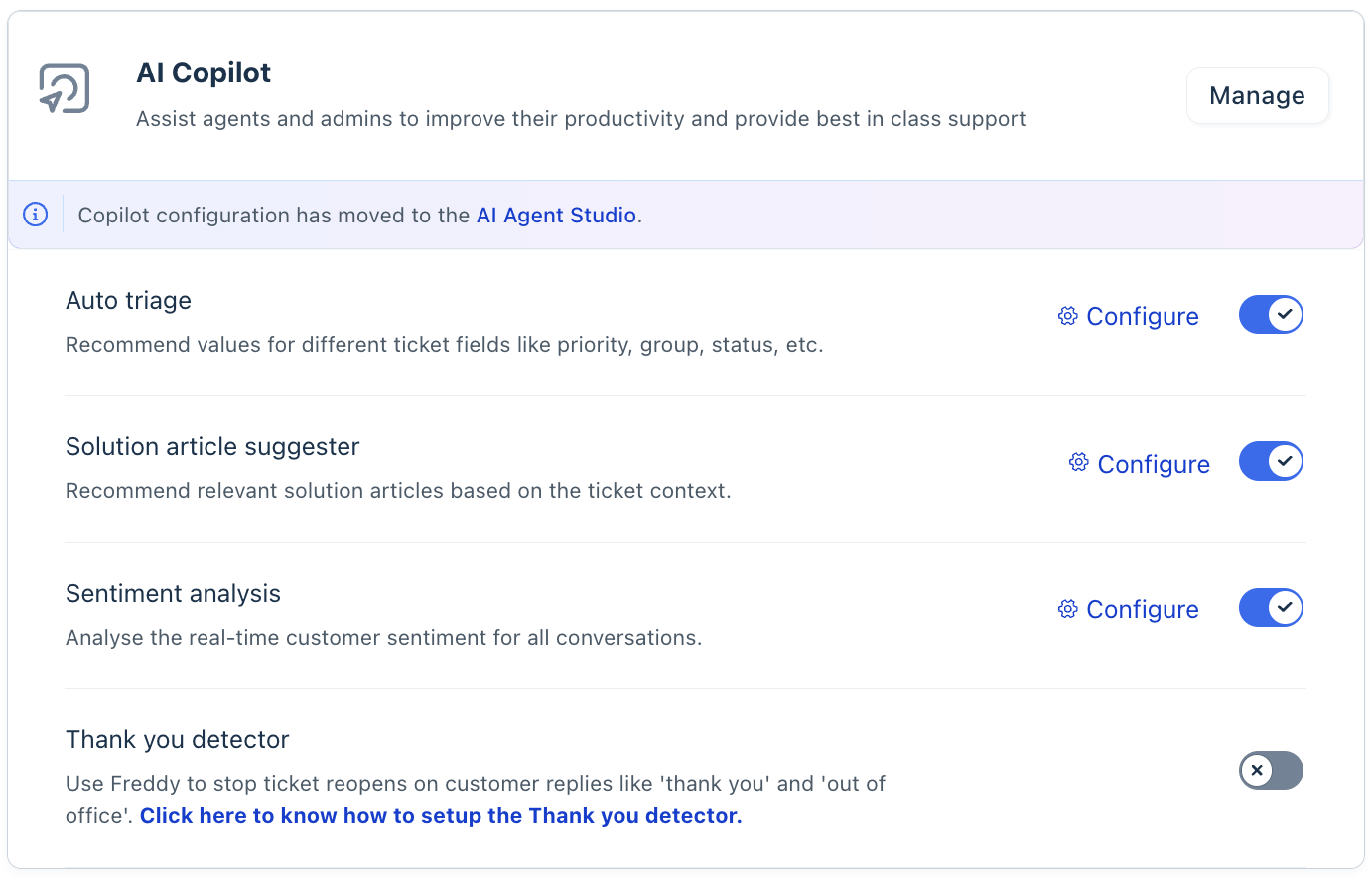
Note: Admin settings for Reply Suggester, Sentiment Analysis, Auto Triage and Summary Generator will still remain under Admin > Freddy AI > AI Copilot.
As and when the features are made available through Early Access Program for Copilot, the feature settings will move under AI Agent Studio > AI Copilot.
Turn built-in features on or off
To turn a built-in feature on or off:
- Go to AI Agent Studio > AI Copilot.
- Under Manage your Copilot's built-in features, locate the feature.
- Toggle it ON to enable the feature, or toggle it OFF to disable it.
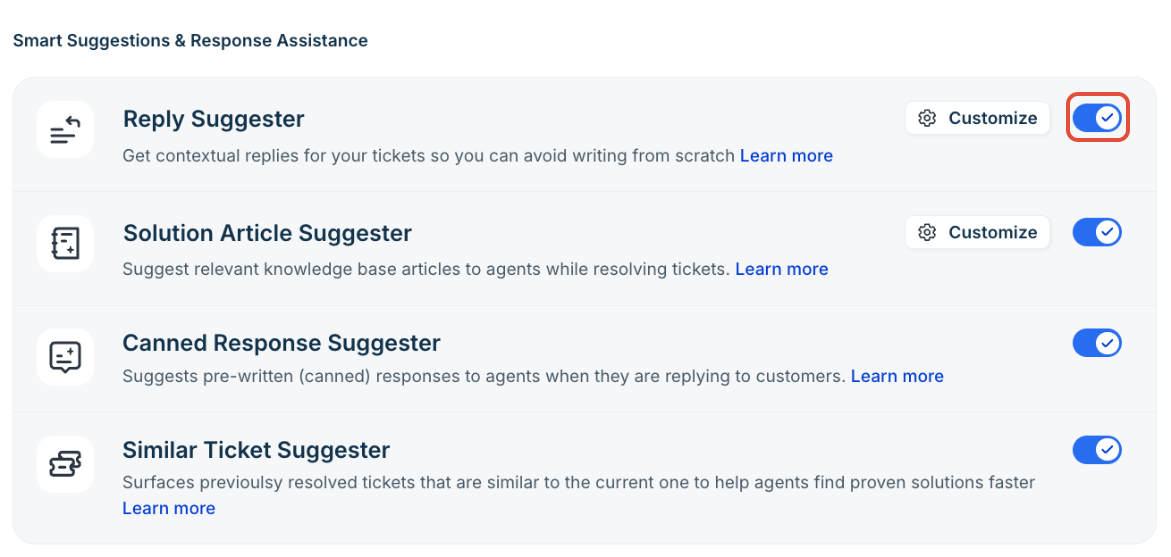
Note that some features may take up to 2-3 days to activate after being enabled.
Configure a built-in feature
Features with a Customize button have configuration options, such as data sources, and instructions.
To configure a built-in feature:
- Go to Agent Studio > AI Copilot.
- Click Customize next to the feature.
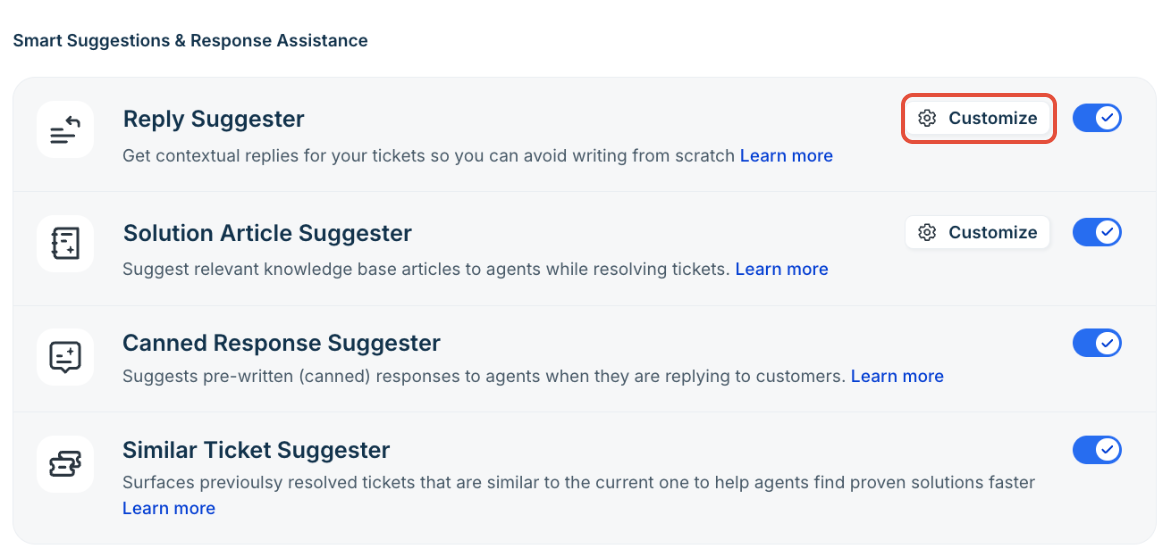
- Update the options on the Configuration tab and the Instructions tab.
- Preview and publish your changes.
When the required feature is OFF, the source displays Disabled and its toggle is unavailable.
Things to keep in mind
- Licenses: Copilot features are available to agents who have a Freddy AI Copilot license assigned.
- Draft and Live Versions: Configuration and instruction changes affect agents only after the draft is published.
- Processing Time: Similar Ticket Suggester and Canned response suggester can take 2-3 days to process account data after they are enabled.
- Data Region: Some built-in features process data outside your preferred data region.